Your Complete Guide to Downloading YouTube Videos for Offline Viewing
Ever found yourself with a perfect YouTube tutorial, a captivating documentary, or a favorite music video queued up, only to be thwarted by a weak signal or a looming data cap? The good news is that YouTube offers a built-in, legitimate way to save videos directly to your mobile device for offline enjoyment. This step-by-step guide will walk you through the entire process, from finding your video to managing your downloads, ensuring you can watch your favorite content anytime, anywhere.
Understanding YouTube’s Official Download Feature
Before we dive into the steps, it’s crucial to understand what the YouTube download feature is—and what it isn’t. This is not a tool for extracting video files to share or edit elsewhere. Instead, it’s a convenience feature designed by YouTube to let Premium members and, in some cases, users in specific regions, save videos for personal, offline viewing within the YouTube app itself. The availability of this feature depends on two key factors: your geographical location and the settings applied by the video’s owner or uploader. Some creators may disable the download option for their content, so not every video will be available for offline saving.
This built-in method is the safest and most reliable way to download content, as it respects copyright and the platform’s terms of service. If you’re interested in creating content for offline platforms, you might find our guide on creating high-view TikTok clips offers complementary creative strategies.
Step-by-Step: How to Download a Video
The process is straightforward and integrated seamlessly into the YouTube app’s interface. Follow these steps carefully.
Step 1: Locate Your Video
First, open the YouTube app on your smartphone or tablet. Use the search bar at the top to find the specific video you wish to download. It could be anything from a recipe guide to a lecture series—anything you know you’ll want to watch without an internet connection.
Step 2: Initiate the Download
Once you’ve opened the video, look for the three vertical dots (often called the “more options” or menu icon) typically located below the video player, next to the “Save” and “Share” buttons. Tap on this icon. From the menu that appears, select the option that says “Download video.” This action will trigger the download settings menu.
Step 3: Select Your Quality
After tapping “Download video,” a new menu will pop up asking you to choose the download quality. Options usually range from Standard to High. Your choice here affects both the video’s visual clarity and the amount of storage space it will consume on your device. Higher quality means a better viewing experience but a larger file size. Select the option that best balances your needs for quality and storage.
Step 4: Confirm and Monitor
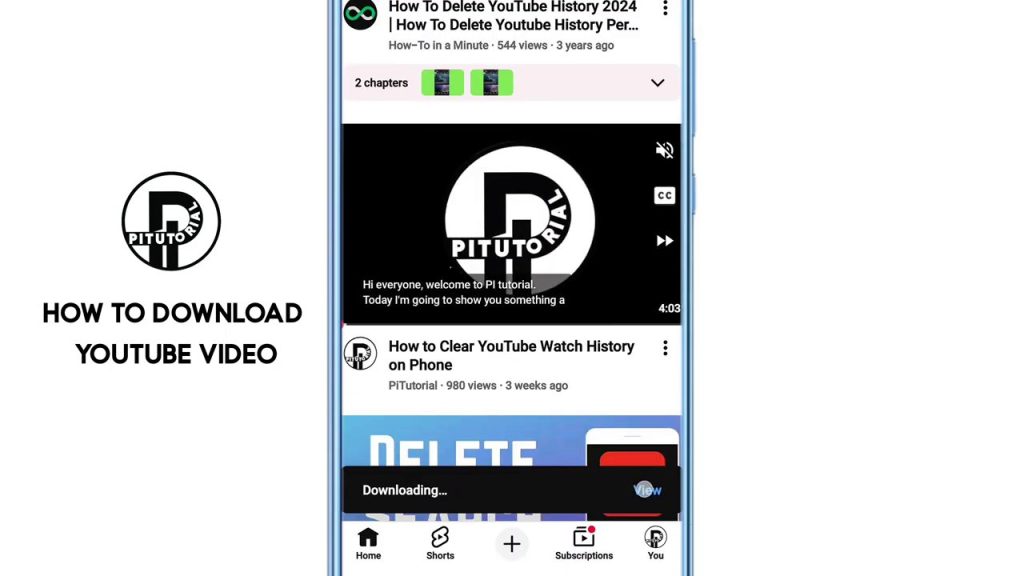
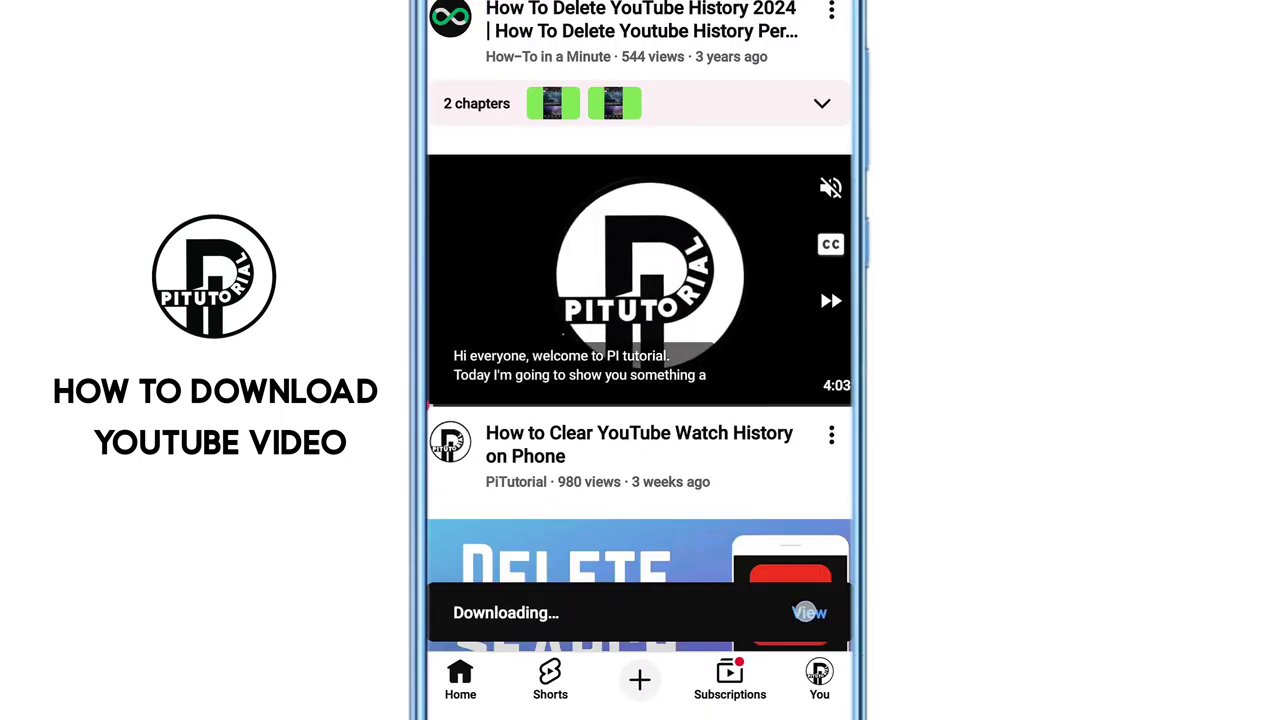
Finally, tap the “Download” button to start the process. You should immediately see a downloading status indicator, often a circular progress bar or a downward arrow icon near the video title. This visual cue confirms that the video is currently being transferred to your device’s local storage. You can now exit the video or even close the app, and the download will continue in the background.
Managing Your Downloads and Troubleshooting
Knowing how to access and manage your downloaded library is just as important as the download process itself.
Accessing Your Downloaded Library
To view all your saved videos, tap on your profile picture or icon in the top-right corner of the YouTube app. In the menu that appears, you will find a section or an option labeled “Downloads.” Tapping this will open a dedicated library where all your offline videos are neatly organized, often by date or playlist.
The “Waiting for Wi-Fi” Status
A common point of confusion is seeing a download status that says “Waiting for Wi-Fi.” This does not mean the download has failed. It simply indicates that your download settings are configured to “Download over Wi-Fi only.” This is a default or user-set preference to prevent large video files from consuming your mobile data plan.
Changing Download Settings
If you want a video to download immediately using your cellular data, you need to adjust this setting. From your Downloads library, look for a settings icon (usually a gear or cog symbol). Tap it, and you will find the toggle for “Download over Wi-Fi only.” Turn this setting off. Once disabled, any queued downloads set to “Waiting for Wi-Fi” will automatically begin downloading using your current data connection.
Important Limitations and Considerations
While incredibly useful, YouTube’s download feature comes with specific restrictions designed to protect content. It’s vital to be aware of these before you rely on it.
- App-Locked Viewing: Downloaded videos can only be watched inside the official YouTube app. You cannot access the video file through your device’s file manager or gallery.
- No Sharing or Transfer: The files are encrypted. You cannot share, transfer, or re-upload the downloaded video to another device or platform.
- Regional and Creator Controls: As mentioned, this feature is not universally available. Its functionality is subject to your region and the video owner’s settings. Some videos will not have a download option at all.
- Expiration: Some downloaded videos, especially music or licensed content, may have an expiration date and will require you to reconnect to the internet to renew the license for continued offline viewing.
Understanding these boundaries helps set the right expectations. For those looking to legally repurpose content for other platforms, exploring strategies for monetizing TikTok by repurposing trending content can provide insights into working within platform guidelines creatively.
Conclusion
Downloading videos on YouTube is a simple, built-in process that empowers you to take your viewing offline. By opening the app, selecting your video, tapping the three-dot menu, and choosing your quality, you can build a personal library of content for commutes, travel, or areas with poor connectivity. Remember to check your Downloads section to manage your files and adjust the Wi-Fi-only setting if needed. Most importantly, keep in mind the feature’s limitations: downloads are for personal, in-app viewing only and are not meant for file sharing or redistribution. By following this guide, you can seamlessly ensure your favorite YouTube videos are always just a tap away, regardless of your internet connection.
