The Official Way to Download Your Own YouTube Videos: A Step-by-Step Guide for Creators
Have you ever needed a local copy of a video you uploaded to YouTube? Perhaps you want to create a backup, edit a new version, or use the footage in a different project. While downloading other people’s content is against YouTube’s terms of service, the platform provides a simple, built-in method for creators to download their own videos directly from YouTube Studio. This guide will walk you through the exact, official steps to retrieve your content from your PC or laptop, ensuring you always have access to your original uploads.
Understanding YouTube’s Official Download Feature
Before we dive into the steps, it’s crucial to understand what this feature is and what it isn’t. YouTube allows the video owner—the channel that uploaded the content—to download the video file they originally provided. This is a legitimate feature designed for creators to manage their content library. It is not a tool for downloading videos from other channels, which violates copyright and YouTube’s Terms of Service.
This official method is the safest and most reliable way to get your video files back. It avoids the risks associated with third-party downloader websites or browser extensions, which can sometimes deliver low-quality files, contain malware, or compromise your account security. By using YouTube’s own system, you’re guaranteed to get the exact file you uploaded, provided it’s still available in its original format on YouTube’s servers.
Prerequisites for Downloading Your Video
To successfully download your video, you need to set up a few things correctly on your computer. Skipping these initial checks is a common reason the download option might not appear.
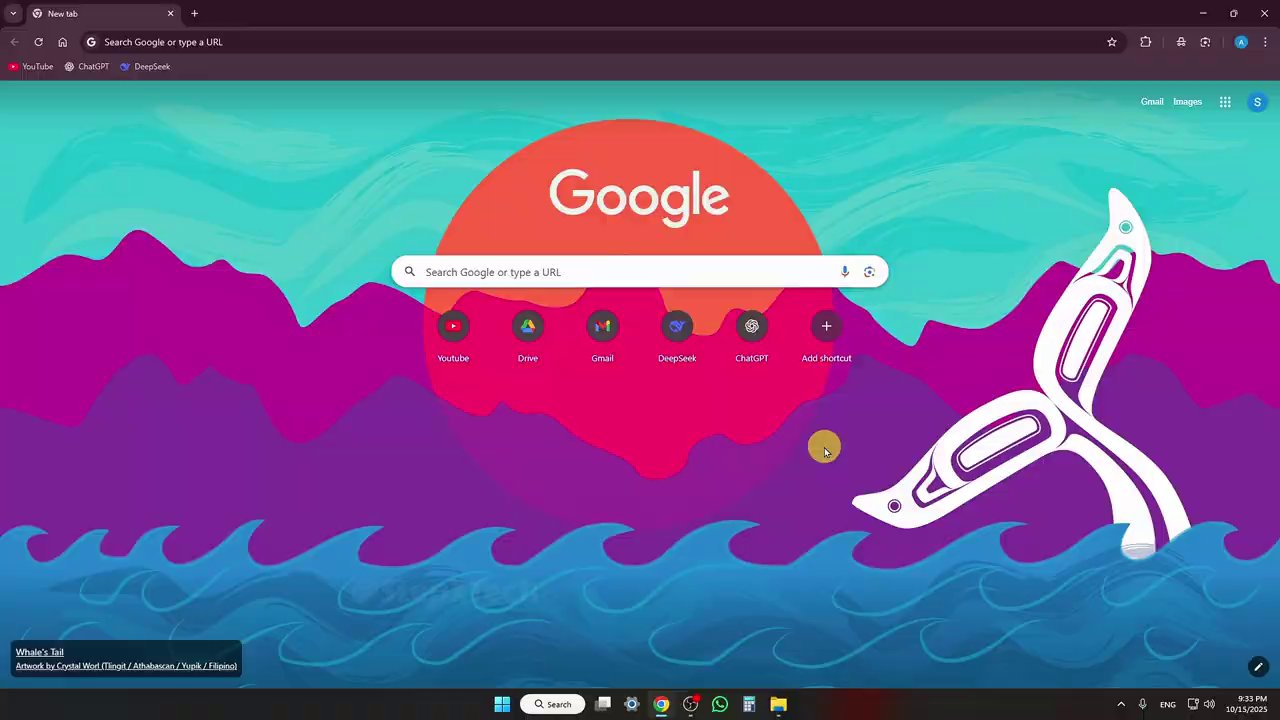
First, ensure you are not using a Chrome browser for this specific task. While Chrome is excellent for most YouTube activities, some users have reported that the download option within YouTube Studio can be inconsistent or missing in Chrome. For the most reliable experience, use an alternative browser like Firefox, Microsoft Edge, or Safari.
Second, and most importantly, you must be signed into the correct YouTube account. This seems obvious, but many creators manage multiple channels or have personal and brand accounts. You can only download videos from a channel you own. Double-check that you are signed into the Google account associated with the YouTube channel where the video was uploaded.
- Use a non-Chrome browser (Firefox, Edge, Safari)
- Sign in with the correct account linked to your YouTube channel
- Ensure you have a stable internet connection for the download
Step-by-Step Guide to Downloading Your Video
Once your browser and account are set, follow these clear, sequential steps to locate and download your video file.
Step 1: Access YouTube Studio
Navigate to YouTube.com in your browser. In the top-right corner of the screen, click on your profile icon. This will open a dropdown menu. From this menu, select YouTube Studio. This is your channel’s command center, where you manage all your content, analytics, and settings.
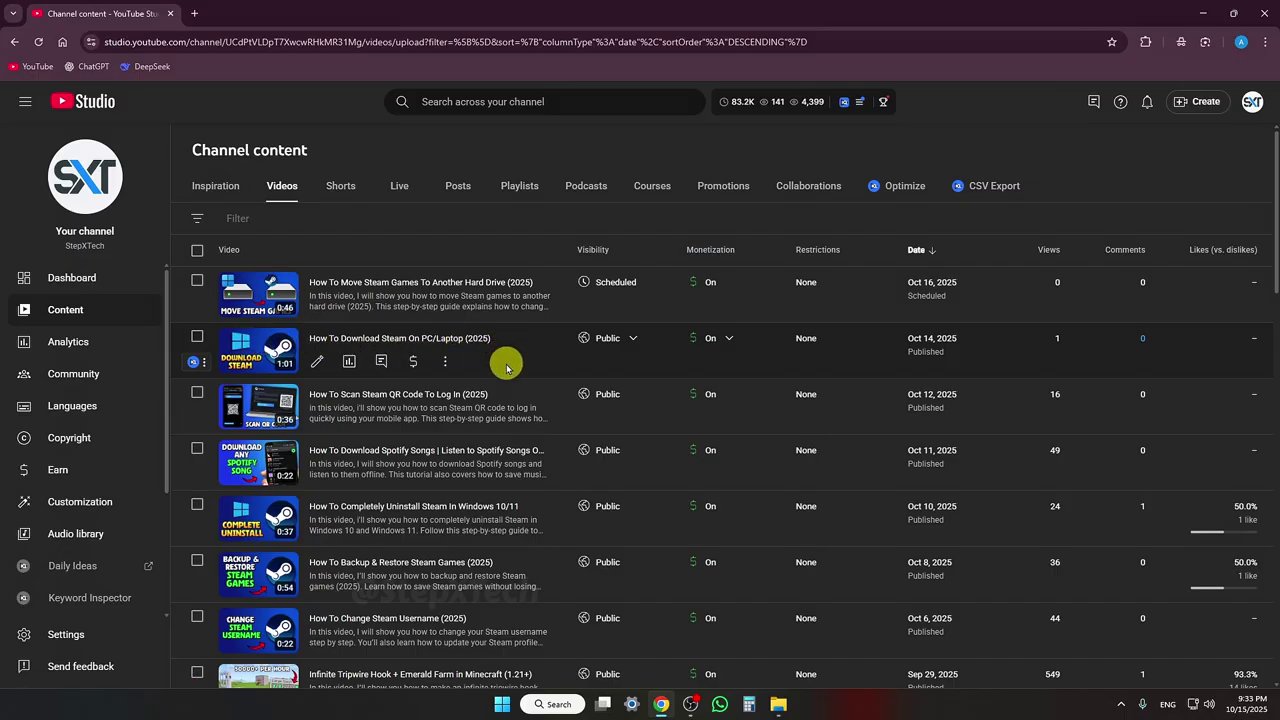
Step 2: Navigate to Your Content Library
Within YouTube Studio, you’ll see a sidebar menu on the left-hand side. Look for and click on the option labeled Content. This section displays a list of all the videos you have uploaded to your channel, both public and private. You can scroll through this list or use the search bar at the top to quickly find the specific video you wish to download.
Step 3: Select and Download Your Video
Find the video thumbnail or title in your content list. Next to the video, you will see a vertical column of three dots (often called a “kebab” or “more options” menu). Click on these three dots. A new menu will appear with several options. One of these options will be Download. Click on “Download,” and your browser will immediately begin saving the video file to your computer’s default download folder.
That’s the entire process! The video file you originally uploaded will be saved to your device. The filename will typically be the same as your original upload or a generic name assigned by YouTube.
Why This Method is Essential for Content Creators
Having local access to your uploaded videos is a cornerstone of good digital asset management. Whether you’re a seasoned vlogger, a business building a brand, or an educator sharing lessons, repurposing content is key to maximizing your efforts. The video you download can be edited into shorter clips for platforms like TikTok or Instagram Reels, used in a compilation, or stored as a secure backup.
This process integrates perfectly into a broader content strategy. For instance, once you have your YouTube video file, you can apply new edits, filters, and effects to tailor it for different audiences on other platforms. If you’re looking to expand your reach, understanding how to adapt long-form YouTube content into engaging short-form clips is a valuable skill. You can explore guides on mastering video editing techniques or learn about creating high-view TikTok clips from existing footage to make the most of your downloaded video.
Furthermore, in the fast-paced world of social media, trends change quickly. A video that performed well on YouTube might be perfectly repurposed to tap into a new trend on another platform, helping you convert views into meaningful engagement or even sales. Understanding how to leverage your existing library is a powerful strategy.
Troubleshooting Common Issues
What if you don’t see the “Download” option? Don’t panic. Here are the most likely reasons and their solutions:
- You are not the video owner: This feature is exclusive to the uploader. You cannot download videos from other channels using this method.
- You are in the wrong account: Log out and ensure you are signing into the Google account that owns the channel.
- The original file is unavailable: In rare cases, if a video was uploaded a very long time ago or has certain copyright claims, YouTube may not have the original file stored. You will see a message stating the original file is not available for download.
- Browser issues: As mentioned, try switching from Chrome to another browser. Also, ensure any ad-blockers or strict browser security settings are temporarily disabled, as they can sometimes interfere with YouTube Studio’s functionality.
Conclusion: Empowering Your Creative Workflow
Downloading your own YouTube videos is a straightforward, official process that empowers you as a creator. By following the simple steps of accessing YouTube Studio, navigating to your Content library, and selecting the download option, you regain control of your digital assets. This practice is not just about archiving; it’s about enabling flexibility. It allows you to back up your work, experiment with new edits, and strategically repurpose your content across the digital landscape, from YouTube Shorts to Instagram Reels and beyond.
Remember, this tool is for managing your content. By keeping a local library of your uploads, you safeguard your work and open up endless possibilities for unlocking your creativity in future projects. Make it a habit to download your important videos, and you’ll always have the raw materials you need to build, adapt, and grow your online presence.