Your Complete Guide to Downloading YouTube Videos for Free on Mobile
In a world where content is consumed on the go, having access to your favorite YouTube videos offline is a game-changer. Whether you’re preparing for a long flight, heading into an area with spotty service, or simply want to save data, downloading videos directly to your mobile phone is an invaluable skill. This guide will walk you through the simple, built-in process to download any YouTube video for free, ensuring your entertainment and education are always at your fingertips. Let’s dive into the straightforward steps to build your personal offline library.
Understanding YouTube’s Download Feature
Before we jump into the steps, it’s important to understand the tool we’re using. The process described utilizes YouTube’s own, legitimate download functionality available within the mobile app. This is not a third-party workaround or a potentially risky external service. It’s a feature designed by YouTube to enhance the viewer experience for those with certain subscriptions or in specific regions. By using the official app, you ensure the safety of your device and the quality of your downloads. This method is about working smarter with the tools already in your hand, turning your phone into a portable media center without the need for constant internet access. For creators looking to repurpose content, understanding these viewing tools is a great first step before diving into more advanced editing, as covered in our guide on Mastering Video Editing: A Step-by-Step Guide to Applying Filters and Effects for Professional Results.
Step-by-Step: How to Download a YouTube Video
The process is remarkably simple and can be completed in just a few taps. Follow this numbered guide to download your first video.
- Open the YouTube App: Begin by launching the YouTube application on your mobile phone. Ensure you are signed into your account, as this feature is typically linked to your user profile.
- Find Your Video: Navigate to the video you wish to download. You can search for it, find it in your subscriptions, or select it from your home screen recommendations. The key is to locate the specific content you want available offline.
- Initiate the Download: Once you have the video open and playing, look for the download icon. This is usually represented by a downward-facing arrow, often located below the video player next to the “Share” and “Save” buttons. Tap the download icon.
- Select Quality (If Prompted): Depending on your app settings and YouTube’s policies, you may be given an option to choose the video quality for the download (e.g., Standard or High). Select your preferred option. Higher quality will take up more storage space on your device.
- Wait for Completion: After tapping download, a status indicator will appear, showing that the video is being saved to your device. The download time will vary based on your internet connection speed and the size of the video. Be patient and let the process complete.
Accessing and Managing Your Downloaded Videos
Once the download is complete, accessing your offline library is straightforward. You have two primary ways to view your saved content:
- Through the Video Itself: Return to the video page in the YouTube app. Where the download button was, you should now see an indication that the video is downloaded (like a checkmark). You can often tap “View” to be taken directly to your downloads.
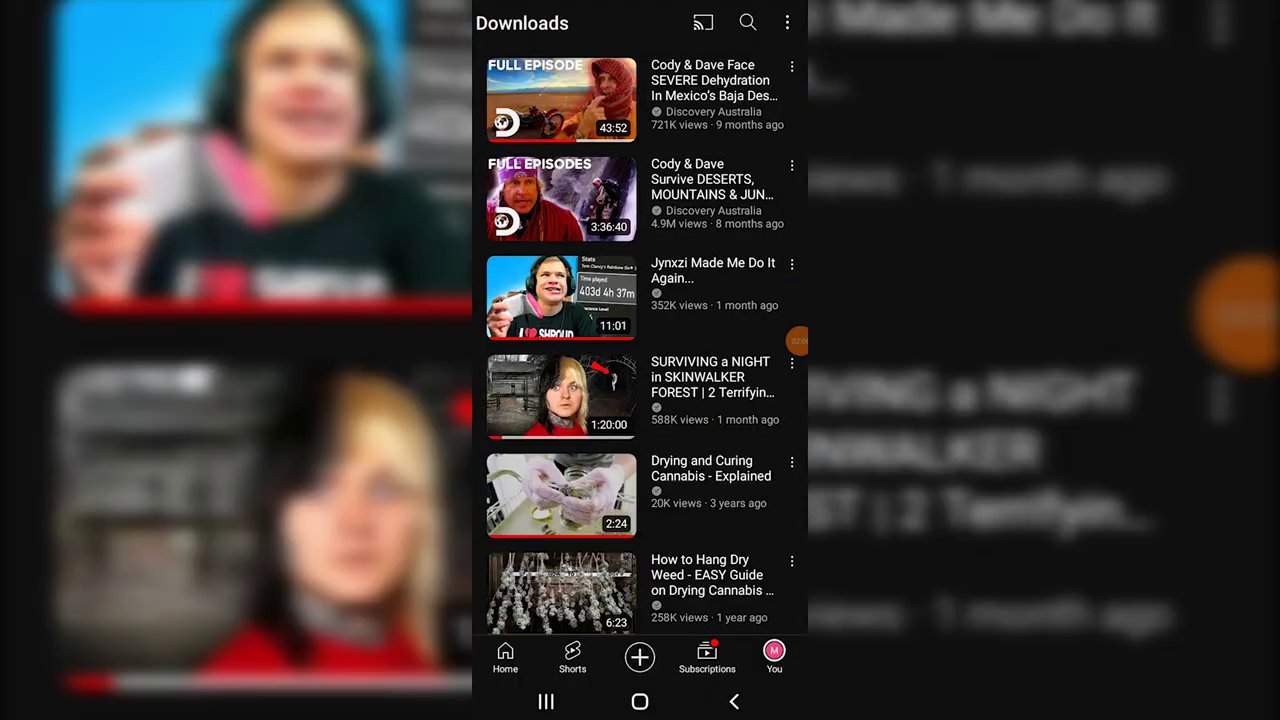
- Via the Library Tab: The most organized method is to go to the “Library” tab in the bottom navigation bar of the YouTube app. Here, you should find a section labeled “Downloads” or something similar. Tapping this will open a dedicated folder containing all the videos you have saved for offline viewing.
To manage your downloads, you can usually swipe on a video in your Downloads list to delete it, freeing up space. Remember, downloads are often temporary and may expire after a set period or if the video is removed from YouTube by the creator.
Why Download YouTube Videos?
You might wonder why downloading is necessary when streaming is so convenient. The benefits are practical and significant:
- Data Conservation: Streaming video consumes a large amount of mobile data. Downloading videos while connected to Wi-Fi allows you to watch them later without touching your cellular data allowance.
- Uninterrupted Viewing: Say goodbye to buffering wheels and poor-quality playback in areas with weak or unstable internet signals, like subways, airplanes, or rural locations.
- Creating a Personal Collection: It allows you to curate a collection of tutorials, music, lectures, or documentaries that are important to you, accessible at any moment without needing to search for them again.
- Content Repurposing for Creators: For aspiring creators, having offline access to inspiration, tutorials, or trending formats is crucial. While this guide covers saving for personal viewing, the foundational step of managing digital content is key. If your goal is to create your own viral clips, the principles of saving and studying content are directly applicable to processes like those outlined in From Screen to Viral: A Free, Step-by-Step Guide to Creating High-View TikTok Clips on Your Phone.
Important Considerations and Best Practices
While the download feature is powerful, responsible use is key.
- Respect Copyright: Downloaded videos are intended for personal, offline viewing only. They should not be redistributed, re-uploaded, or used commercially without the explicit permission of the copyright holder.
- Storage Management: Video files can be large. Regularly check your device’s storage and clear out downloads you’ve already watched to ensure your phone continues to run smoothly.
- Feature Availability: The ability to download videos for free directly within the YouTube app can depend on your geographical location, the specific video’s licensing, and YouTube’s current policy offerings. It’s always a good idea to explore the official YouTube Help pages for the most up-to-date information for your region.
- App Updates: Ensure your YouTube app is updated to the latest version from your device’s official app store. New features and bug fixes are regularly rolled out through updates.
Conclusion
Downloading YouTube videos to your mobile phone is a simple yet profoundly useful skill that enhances your control over your media consumption. By following the clear steps of opening the app, selecting your video, and tapping the download button, you can build a personal offline library in minutes. This process saves data, guarantees playback without interruptions, and ensures your favorite content is always within reach. Remember to manage your device storage wisely and always respect the intellectual property of the creators you enjoy. With this knowledge, you’re ready to make the most of your YouTube experience, anytime and anywhere. For more tips on navigating and mastering modern social platforms, explore our comprehensive resource, TikTok is Back: Your Complete 2025 Guide to Navigating, Creating, and Mastering the App.