Your Complete Guide to Downloading YouTube Videos for Offline Viewing
Ever find yourself wanting to watch a YouTube video but stuck without an internet connection? Whether it’s a tutorial, a favorite music video, or a short clip you want to save, the ability to download content for offline use is a game-changer. This guide will walk you through the simple, built-in process to download videos directly from YouTube, ensuring your favorite content is always accessible, even when you’re offline. We’ll cover everything from finding the video to verifying the download, so you can enjoy uninterrupted viewing anytime, anywhere.
Understanding YouTube’s Official Download Feature
YouTube offers a legitimate and straightforward way to download videos for offline viewing through its official platform. This feature is primarily available within the YouTube mobile app for YouTube Premium subscribers, but there are also scenarios on desktop. The process is designed to be user-friendly, integrating seamlessly with your library. The key benefit is convenience and reliability; by using YouTube’s own system, you avoid the risks associated with third-party websites or software, such as malware or violating terms of service. Downloaded videos are stored within the app itself, making them easy to find and manage.
It’s important to note the distinction between this official method and other techniques. The official download function respects content creators’ rights and platform rules, as the videos are typically encrypted and only playable within the YouTube app for a limited time. This guide focuses exclusively on this sanctioned method to ensure a safe and smooth experience.
Step-by-Step: How to Download Your Favorite YouTube Video
The process is intuitive and can be completed in just a few taps or clicks. Let’s break it down into clear, actionable steps.
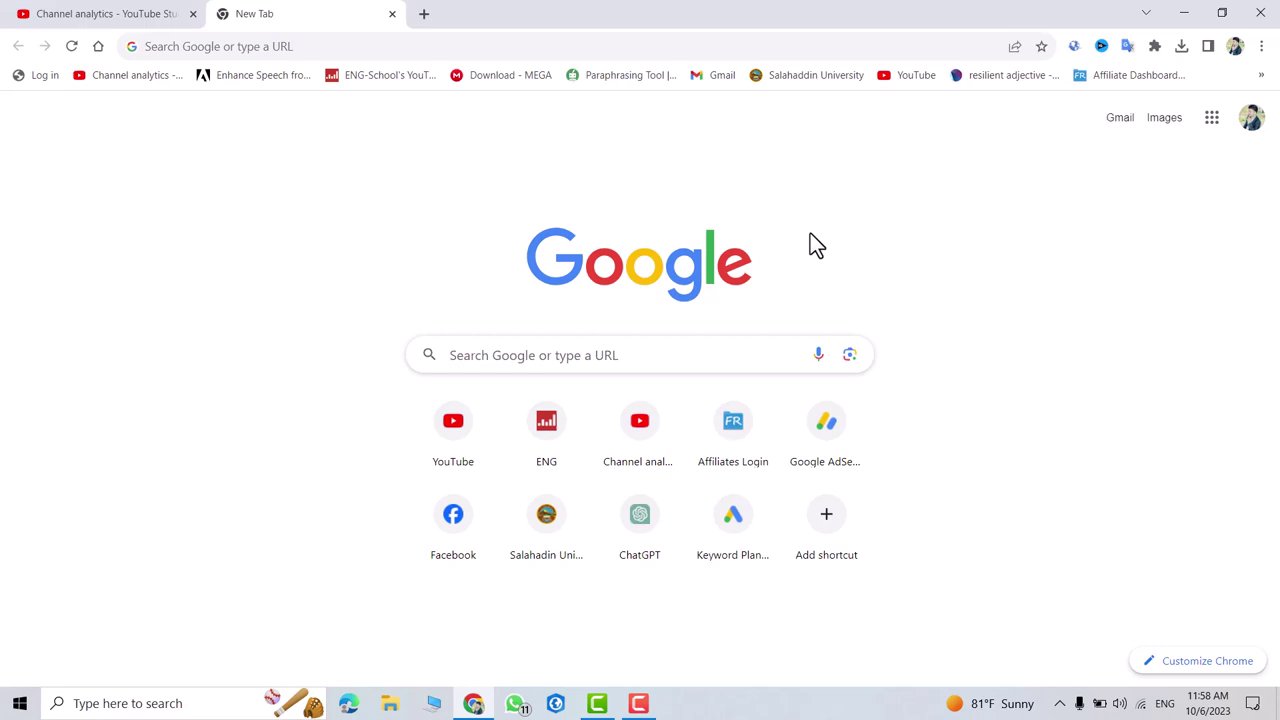
- Navigate to YouTube and Search: Open the YouTube app or website. Use the search bar to find the specific video you wish to download. For instance, you might search for a quick tutorial like “how to tidy a room in one minute” or any other content that catches your interest.
- Select Your Video: From the search results, tap or click on the video you want to save for offline viewing. This will open the video player page.
- Locate the Download Option: Below the video player, you will find various action buttons. Look for the “Download” button, which is often represented by a downward-facing arrow icon. On some interfaces, especially on desktop or for certain videos, you may need to click the “More” or three-dots menu to find the download option.
- Initiate the Download: Click or tap the “Download” button. A prompt may appear asking you to select the video quality (e.g., Standard or High Definition). Choose your preference, and the download will begin.
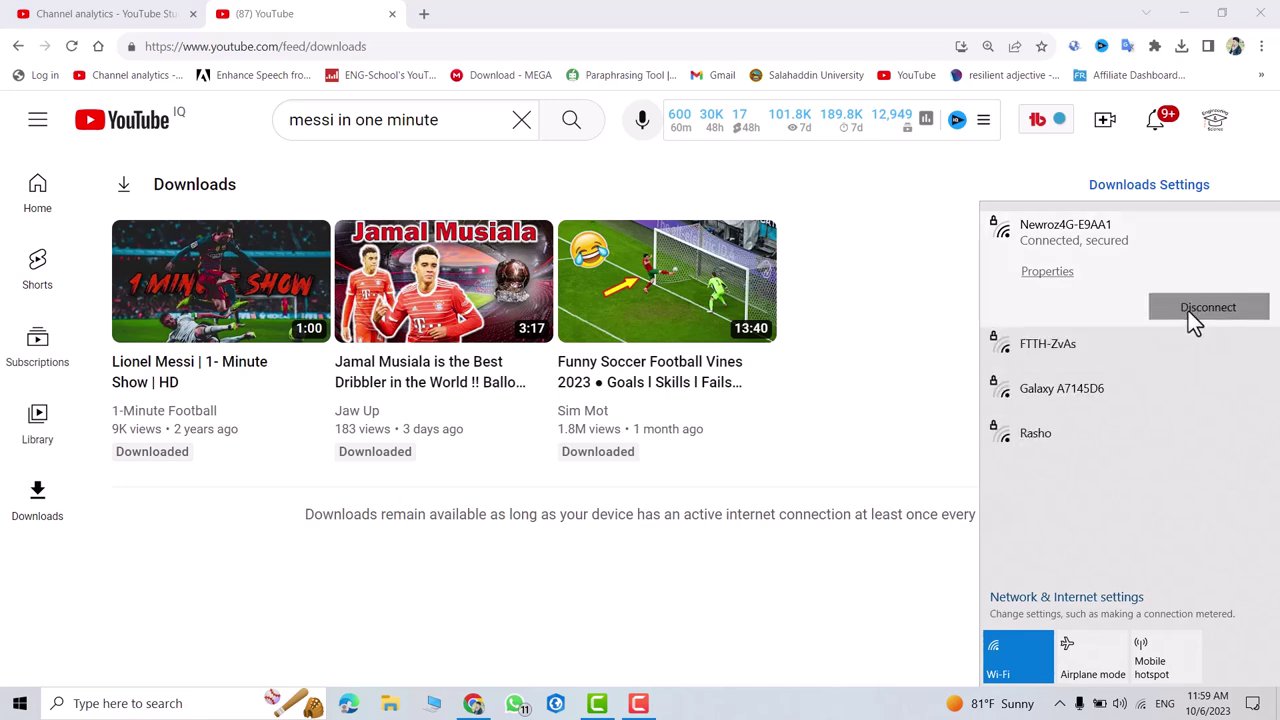
Pro Tip: Keep the YouTube window or app open while the download is in progress to ensure it completes successfully. You will see a progress indicator, usually a circular bar or a percentage, showing the download status.
Managing and Accessing Your Downloaded Videos
Once you’ve started downloading, it’s easy to manage your offline library. YouTube conveniently centralizes all your downloads in one place.
- Accessing Your Downloads: To view your downloads, look for the “Library” section in the YouTube app. Within “Library,” you should find a tab or section labeled “Downloads.” Here, you will see all the videos you have successfully saved.
- Monitoring Progress: In the Downloads section, you can see which videos are fully downloaded and which ones are still in progress. For example, your list might show two completed videos and one that is currently downloading. This allows you to monitor the status at a glance.
- Playing Offline Videos: The true test of a successful download is offline playback. To verify, you can switch your device to airplane mode or disconnect from Wi-Fi and mobile data. Then, navigate back to your Downloads library. Select any downloaded video—it should play smoothly without buffering, proving that the content is now stored locally on your device.
This management system makes it simple to build a personal offline playlist for travel, commutes, or areas with poor internet connectivity. For those who create content, understanding how to save and access media offline is a foundational skill that complements more advanced techniques, such as those covered in our guide on repurposing trending content for new platforms.
Why Downloading for Offline Viewing is Essential
The ability to watch videos offline isn’t just a luxury; it’s a practical tool for modern digital life. Here are the core benefits:
- Uninterrupted Access: No more worrying about spotty Wi-Fi, expensive mobile data, or dead zones. Your entertainment or learning continues seamlessly.
- Data Conservation: By downloading videos over Wi-Fi, you can avoid consuming your cellular data plan when you watch them later.
- Focused Viewing: Having content saved locally allows for focused, distraction-free viewing sessions, which is perfect for educational tutorials or lengthy documentaries.
- Content Preservation: While downloaded videos via YouTube’s official method have expiration periods, it allows you to temporarily save content you want to watch repeatedly or reference.
Mastering the download feature is part of becoming a savvy media consumer. It aligns with a broader trend of taking control of your digital experience, much like learning to navigate and master the latest features of popular social apps. Whether for education, entertainment, or inspiration, having key videos at your fingertips empowers you to learn and be entertained on your own schedule.
Conclusion: Embrace On-Demand, Offline Entertainment
Downloading YouTube videos for offline use is a simple yet powerful feature that enhances how we interact with digital content. By following the official steps—searching for your video, clicking the download option, and managing your files through the Library—you can build a personal media collection accessible anywhere. Remember, the key advantages are reliability, convenience, and freedom from internet constraints. So the next time you find a must-watch video, give the download button a click. You’ll thank yourself later when you can enjoy it on a plane, during your commute, or simply when you want to save on data. Happy viewing