Your Complete Guide to Downloading YouTube Videos: Official Methods Explained

Ever wanted to save a YouTube video to watch offline during a commute, a flight, or just to have a backup of your own content? You’re not alone. Downloading videos from YouTube is a common need, but navigating the platform’s official options can be confusing. This guide will walk you through the two primary, legitimate ways to download videos directly from YouTube: one for your own content and another for videos from other creators. We’ll break down each method step-by-step, ensuring you have all the information you need to save videos for offline viewing the right way.

Downloading Your Own YouTube Videos
The simplest and most straightforward method for downloading videos is for content you have uploaded yourself. This is a built-in feature of YouTube Studio, available to all creators, and it’s completely free. Whether you need a local backup of your work, want to edit the original file, or repurpose it for another platform, this is your go-to solution.
The process is intuitive and can be completed in just a few clicks from your computer’s browser. Here’s exactly how to do it:
- Access YouTube Studio. Start by navigating to YouTube in your web browser. In the top-right corner, click on your profile icon. From the dropdown menu that appears, select YouTube Studio. This is your command center for managing your channel and content.
- Navigate to the Content section. Once inside YouTube Studio, look at the menu on the left-hand side of the screen. Click on Content. This page displays a list of all the videos you have uploaded to your channel.
- Select your video and find the download option. Find the specific video you wish to download from your list. Hover your mouse cursor over the video’s thumbnail or title. You will see a vertical row of three dots appear—this is the Options menu. Click on these three dots.
- Initiate the download. From the Options menu that pops up, click on Download. Your browser will immediately begin downloading the original video file you uploaded (or the processed version YouTube has stored) to your computer’s default download folder.
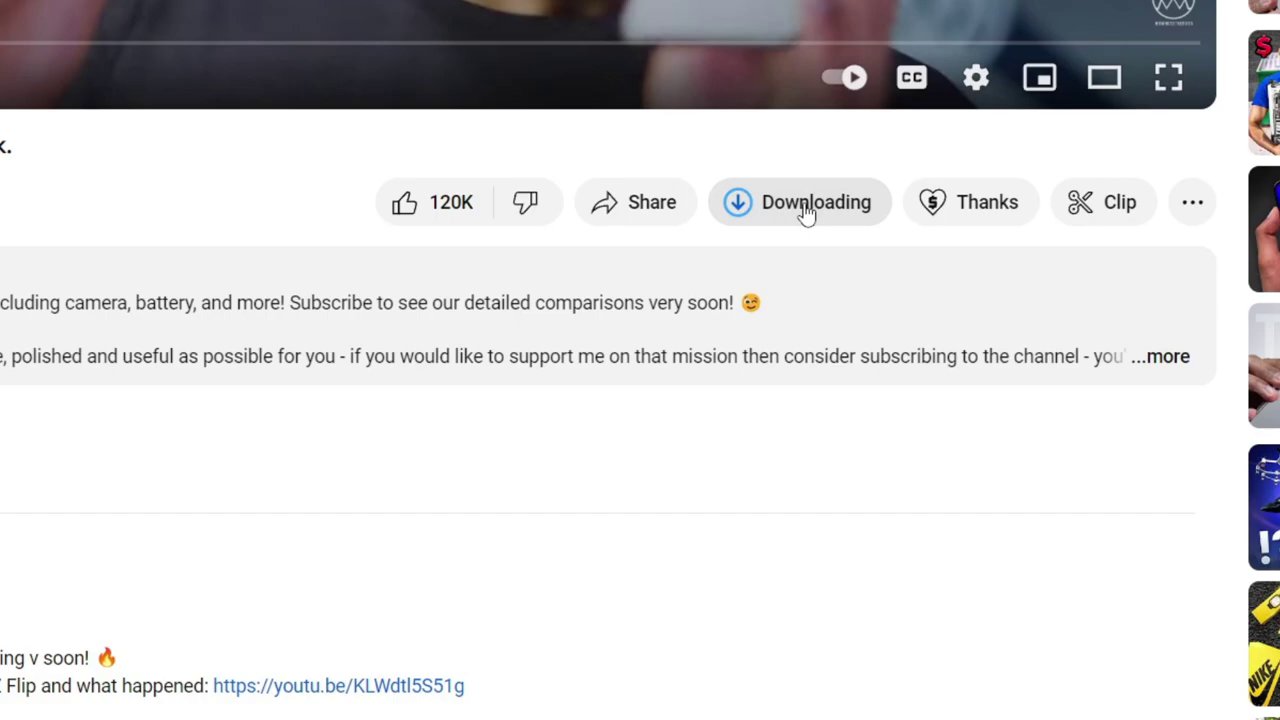
You can monitor the download progress in the top or bottom corner of your browser, depending on your settings. This method provides a quick and reliable way to retrieve your own content without needing any additional software or subscriptions.
Downloading Other Creators’ Videos with YouTube Premium
What if you want to download a tutorial, a documentary, or music for offline enjoyment? For videos you do not own, YouTube offers an official solution through its subscription service, YouTube Premium. This is the only method endorsed by YouTube for downloading other people’s content for offline viewing.
YouTube Premium is a monthly membership that offers a suite of benefits, with offline downloads being a key feature. It also includes ad-free viewing, background play on mobile devices, and access to YouTube Music Premium. It’s designed for viewers who consume a lot of content and want a more seamless, portable experience.
Here is the step-by-step process to download any video using YouTube Premium:
- Find the video. Browse YouTube and open the video you want to save for offline viewing.
- Locate the download button. Scroll down slightly, just below the video player. You will see a button labeled Download. This button is only visible to YouTube Premium subscribers.
- Subscribe to YouTube Premium (if needed). If you are not a member, clicking the Download button will prompt you to start a free trial or subscribe to YouTube Premium. You will need an active subscription to proceed.
- Start the download. Once you have an active Premium subscription, click the Download button. The video will begin downloading to your device. You can see a progress bar indicating the download status.
- Access your downloads. To view all your downloaded videos, click on the Downloads section within the YouTube app (typically found in the Library tab). Here, you can manage and watch your saved content anytime, without an internet connection.
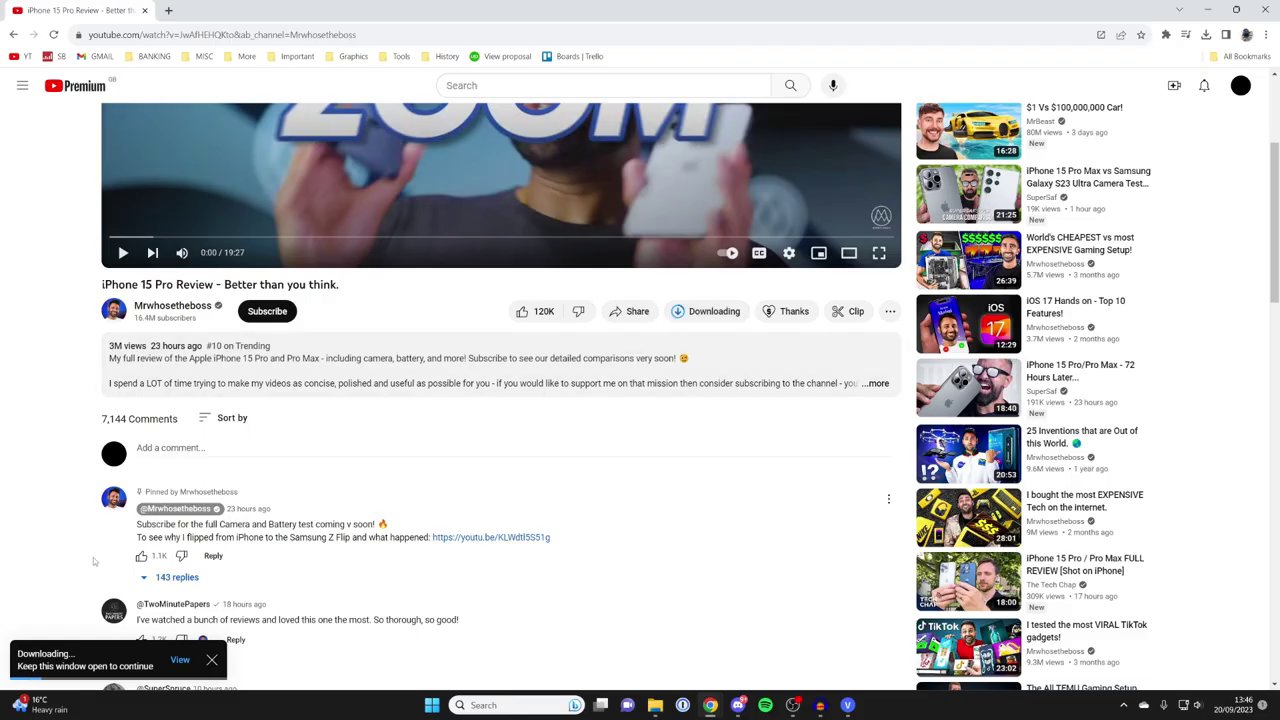
This method is incredibly useful for travelers, commuters, or anyone with an unreliable internet connection. It allows you to build a personal library of videos to watch on the go. Remember, these downloads are typically for personal, offline viewing within the YouTube app and may have limitations, such as an expiration period if your Premium subscription lapses.
Understanding the Benefits and Considerations
Choosing the right download method depends entirely on your goal. Let’s summarize the key points and benefits of each approach.
For Your Own Content (Free via YouTube Studio):
– Primary Benefit: It’s completely free and provides access to your original video file.
– Best For: Creators who need backups, want to re-edit their content, or plan to repurpose videos for other platforms. For instance, a creator might download their YouTube video to edit a shorter clip for TikTok or Instagram Reels. If you’re interested in learning how to adapt content across platforms, our guide on The TikTok Effect: Choosing the Right Short-Form Platform for Your Content Goals offers valuable insights.
– Consideration: This method only works for videos on your own channel.
For Others’ Content (Via YouTube Premium):
– Primary Benefit: Offers a legal, convenient, and high-quality way to save any video for offline viewing on your mobile device or computer.
– Best For: Avid viewers who want an ad-free experience, enjoy background play, and need to watch videos without an internet connection. The ability to download is part of a larger package of viewer-focused features.
– Consideration: Requires a paid monthly subscription. Downloaded videos are meant for personal use within the YouTube app and are not meant to be distributed or stored indefinitely as separate files.
It’s also worth noting that while third-party websites and software claim to download YouTube videos for free, they often violate YouTube’s Terms of Service, can pose security risks (like malware), and may provide poor-quality downloads. The official methods outlined here are safe, reliable, and support the creators whose content you enjoy.
Key Takeaways and Final Thoughts
Downloading YouTube videos is a straightforward process when you use the platform’s official tools. To recap the essential steps:
- For your videos: Use YouTube Studio > Content > Options > Download. It’s a creator’s right and a vital tool for content management.
- For any video: Use the Download button with an active YouTube Premium subscription. This is a premium feature designed for enhanced viewer convenience.
Whether you’re a creator safeguarding your work or a viewer preparing for a long trip, these methods have you covered. By using the official channels, you ensure a high-quality result, respect copyright, and keep your device secure. The next time you need a video offline, you can confidently use YouTube’s own system to save it. And if you’re a creator looking to enhance your downloaded videos before sharing them elsewhere, exploring resources like Mastering Video Editing: A Step-by-Step Guide to Applying Filters and Effects for Professional Results can be an excellent next step in your content workflow.