The Ultimate 2025 Guide to Downloading Instagram Reels on iPhone Without Apps or Watermarks
Have you ever wanted to save your favorite Instagram Reel to your iPhone’s camera roll, only to be met with watermarks, clunky apps, or complicated processes? What if you could download any Reel in pristine HD quality directly to your Photos app with just a few taps? In this exclusive guide, we’ll walk you through a remarkably simple, app-free method that leverages a powerful iOS shortcut to download Instagram Reels without any watermark. This technique is not only fast but also preserves the original video quality, making it the perfect solution for content creators and casual users alike.
Why This Method is a Game-Changer
Before diving into the step-by-step process, it’s important to understand why this particular method stands out. Traditional ways of saving Instagram content often involve third-party apps that can be filled with ads, require subscriptions, or leave unsightly watermarks across your saved videos. Other methods might use websites that compromise on video resolution.
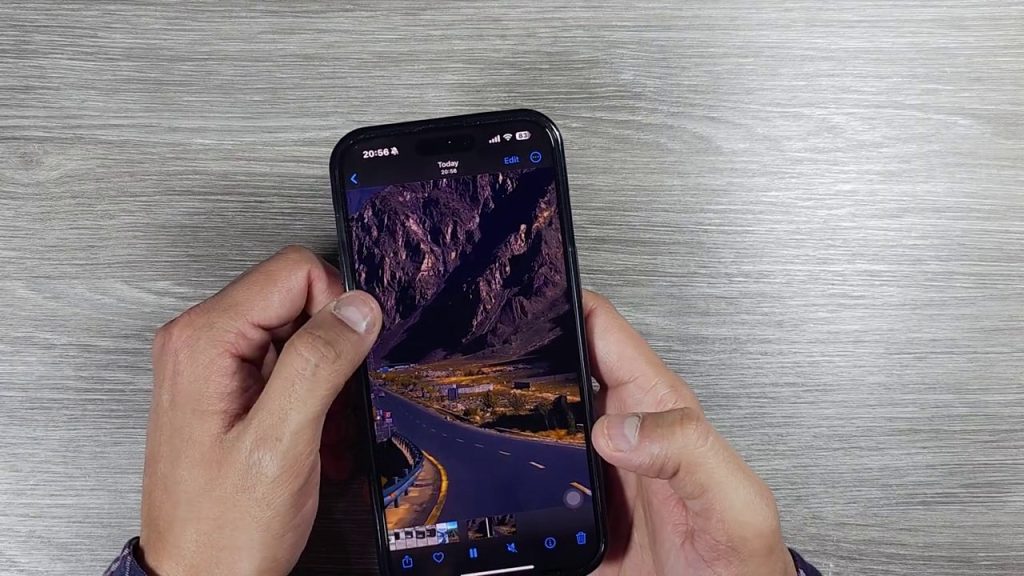
This guide details a process that uses the built-in Shortcuts app on your iPhone, a tool Apple provides for automation. By using a specific shortcut, you bypass the need for any external applications. The result is a direct, high-quality download that lands right in your photo gallery. The speaker in the tutorial video demonstrates the final product: a 13-second video saved in 1080p H.264 quality, confirming the output is in full HD without any branding from Instagram or a downloader tool.
Step-by-Step: Setting Up the “All Media Downloader” Shortcut
The core of this technique is a shortcut called “All Media Downloader.” You don’t create this shortcut from scratch; instead, you install a pre-configured one from a trusted source. Here is the exact process, clarified and structured from the video transcript.
- Open Your Browser: Launch Safari or Chrome on your iPhone.
- Navigate to the Source: In the address bar, type
theme point dot net(as mentioned in the video). Press the first link that appears in the search results to land on the correct website. - Find the Shortcut Menu: On the website, look for and tap the three horizontal lines (the standard menu icon). This will open a side menu.
- Select the iOS Shortcut: From the menu, find and select the option that says “ISO shortcut” (this is likely a phonetic transcription for “iOS Shortcut”). Tap “Start” on the next page.
- Choose the Media Downloader: You will then see a new page. Select the second option, titled “All Media Downloader – Simplify media downloader with iPhone shortcut.” Tap “Start” again.
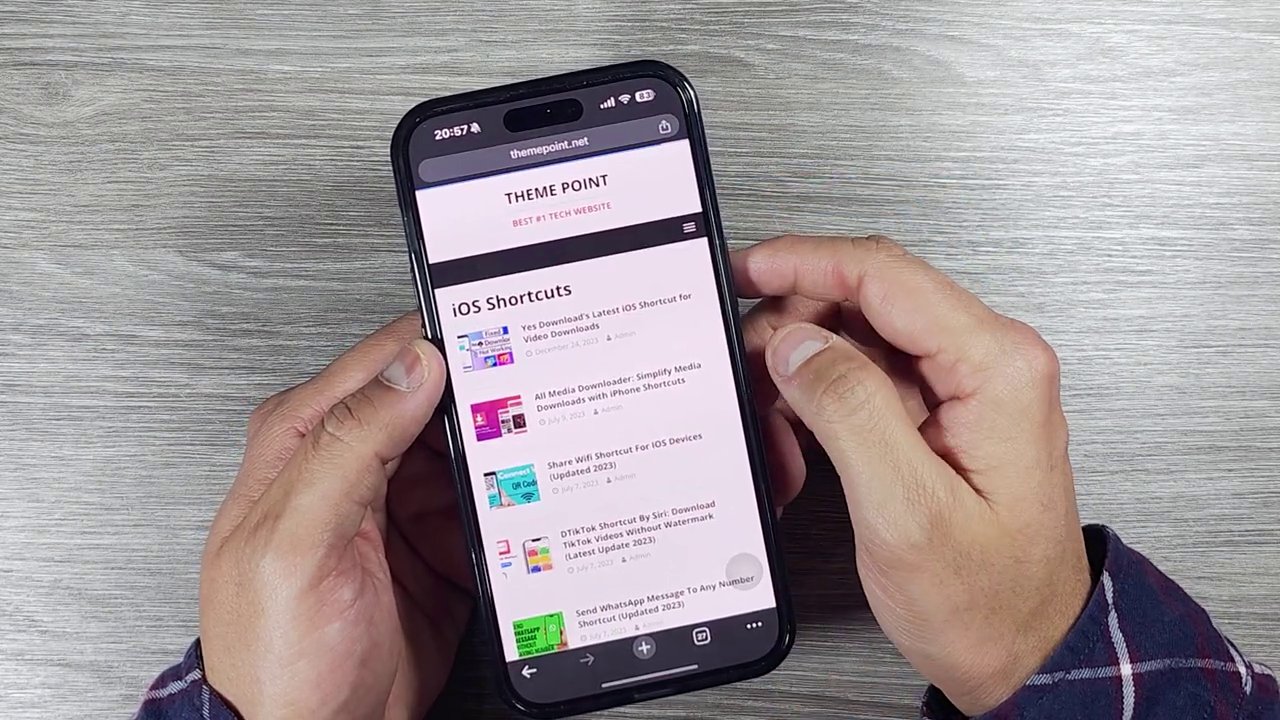
- Install the Shortcut: This will open the shortcut’s information page. Ignore any ads on this page. Scroll down until you see a large red button that says “Install Shortcut.” Tap it.
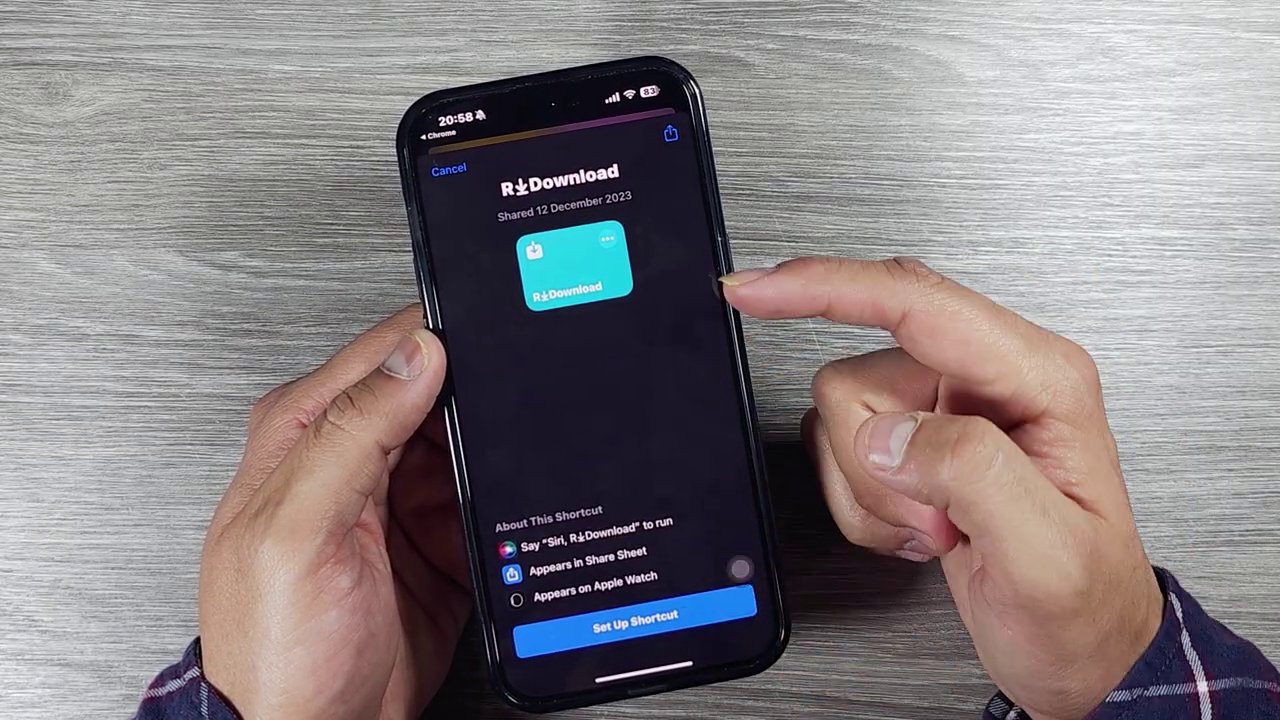
- Configure the Shortcut: Your iPhone will now prompt you to set up the shortcut. A “Configure this Shortcut” screen will appear. You will be asked to choose a language by entering a number (1 for English, 2 for Arabic). Enter 1 for English and tap “Next.”
- Finalize Installation: You may see another configuration screen. You can typically skip this or tap “Add to Shortcut.” If you already have a version of this shortcut, your phone will ask if you want to replace it. Confirm the installation.
Once completed, the “All Media Downloader” shortcut will be available in your iPhone’s Shortcuts app. You can verify this by opening the Shortcuts app and looking at your library of shortcuts.
How to Download Any Instagram Reel in Seconds
With the shortcut installed, the actual download process is incredibly straightforward. This is where you see the payoff for that quick setup. The method integrates seamlessly into your normal Instagram browsing.
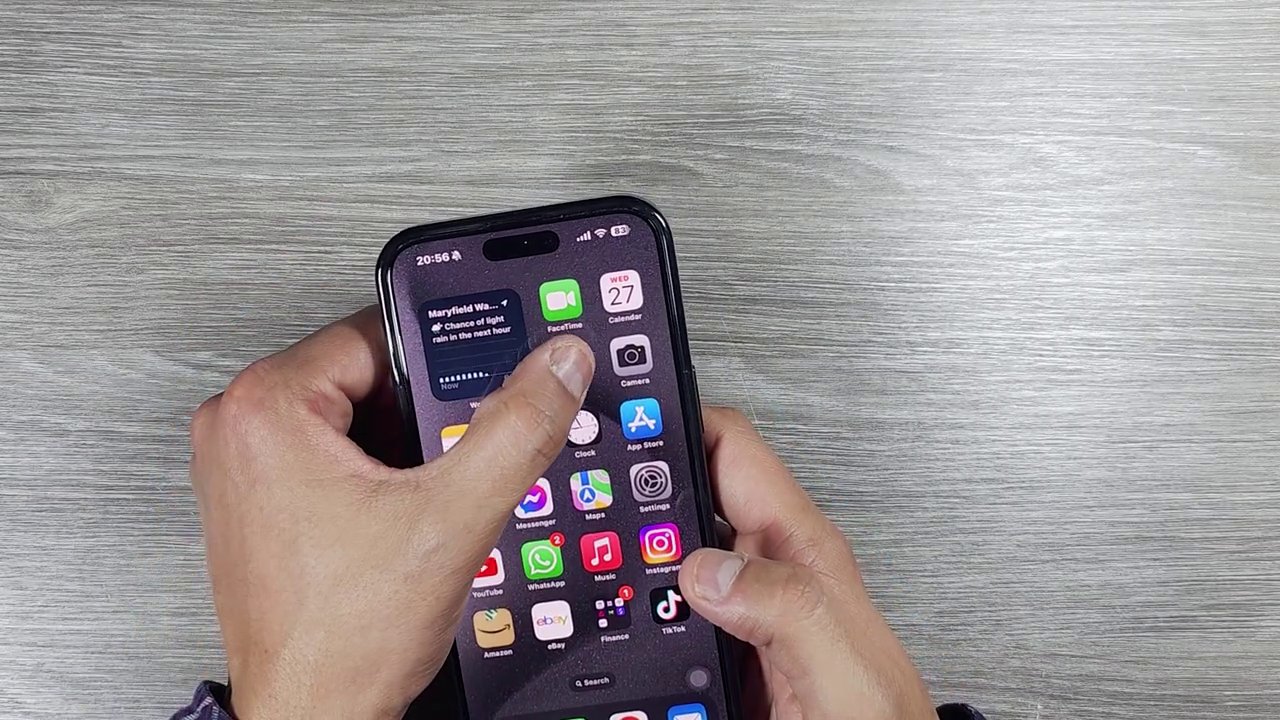
- Browse Instagram as Usual: Open the Instagram app and find the Reel you wish to download. It can be from your feed, the Explore page, or a creator’s profile.
- Initiate the Share Menu: Tap the share button (the paper airplane icon) on the Reel.
- Access the Shortcut: In the share sheet that pops up, scroll through the options. You should now see the “All Media Downloader” shortcut listed among other actions like “Copy Link” or “Save.” Tap on it.
- Start the Download: The shortcut will immediately activate. You will see a downloading progress bar appear at the top of your screen, as demonstrated in the video.
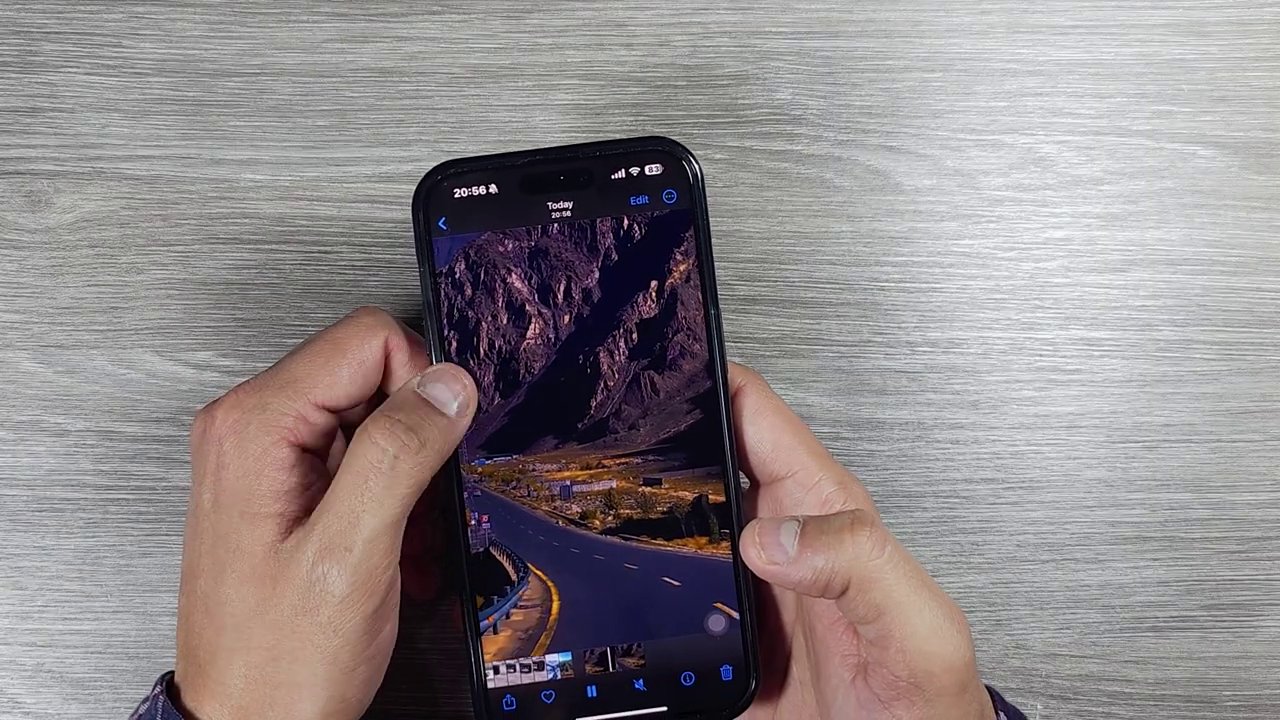
- Find Your Video: Once the progress bar completes, exit Instagram. Open your Photos app. Navigate to your “Recents” album. Your newly downloaded Instagram Reel will be there, saved as a standard video file.
The video confirms the success of this process. The creator navigates to the photo gallery to show the downloaded video, specifically noting that there is no watermark and that the video is saved in HD quality, up to 4K. A check of the video info shows it is a 1080p H.264 file, proving the high fidelity of the download.
Important Considerations and Best Practices
While this method is powerful, it’s wise to use it responsibly and be aware of a few key points.
- Respect Copyright and Privacy: Only download content for personal use, inspiration, or fair use purposes. Never repost downloaded content as your own or use it for commercial gain without explicit permission from the original creator. This tool is a convenience, not a license to infringe on intellectual property.
- Source Reliability: The tutorial directs users to a specific website (
theme point dot net). Always ensure you are visiting the correct and secure site. The presence of ads on the shortcut page is normal for free tools, but be cautious not to tap on misleading ad placements. - Shortcut Permissions: When you install a shortcut, it may request access to certain functions, like saving files to your Photos. This is normal and necessary for its operation. Only install shortcuts from sources you deem trustworthy.
- Versatility: As the name “All Media Downloader” implies, this shortcut may also work for downloading other media types, such as videos from Facebook Reels or images from various platforms, though the tutorial focuses specifically on Instagram Reels.
Conclusion: Unlocking Hassle-Free Instagram Saves
Downloading Instagram Reels to your iPhone no longer needs to be a frustrating hunt for a decent app or a compromise on quality. By leveraging the built-in power of iOS Shortcuts with the “All Media Downloader” tool, you have a permanent, efficient solution at your fingertips. The process is simple: install the shortcut once, and from then on, downloading any Reel is just a matter of tapping the share button twice.
This method successfully eliminates watermarks, preserves the original HD (and even 4K) quality of the video, and stores your saves directly in the native Photos app for easy access. Remember to use this capability respectfully towards content creators. With this guide, you’re now equipped to build a personal library of inspiring, funny, or educational Reels without any technical hassle. Happy downloading