The Ultimate Guide to Downloading Instagram Videos to Your PC Without Any Software
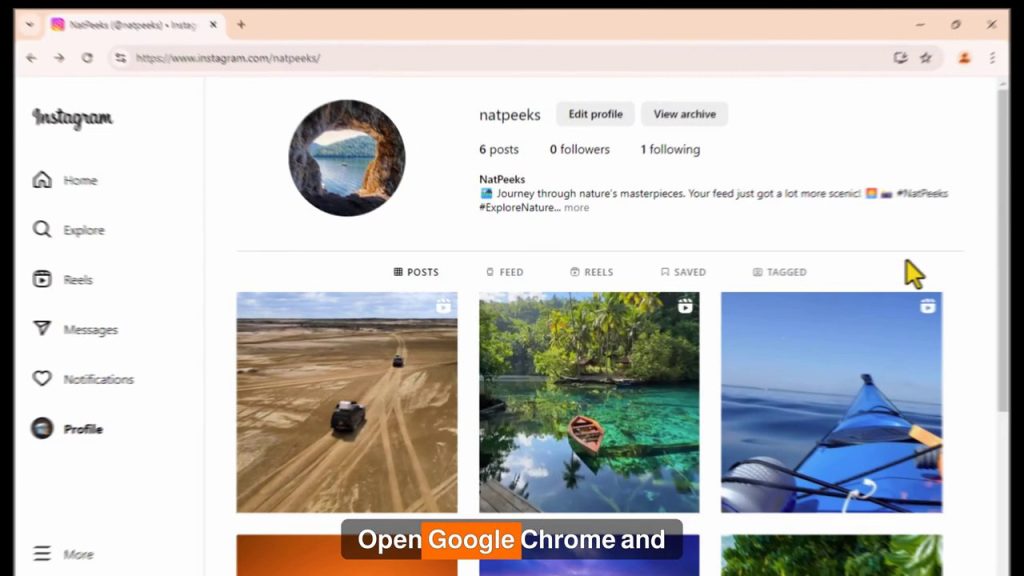
Have you ever scrolled through Instagram and stumbled upon a video you absolutely needed to save? Perhaps it’s a crucial tutorial, a heartwarming clip, or a piece of content you want to reference later. While Instagram doesn’t offer a built-in download button for its content, there’s a surprisingly simple method to save videos directly to your computer. This guide will walk you through the entire process, step-by-step, using nothing but your web browser. You’ll learn how to leverage a built-in developer tool to access and download any public Instagram video, completely free of extra software.
Why Download Instagram Videos?
Before we dive into the how, let’s briefly explore the why. The ability to save Instagram content can be incredibly useful for a variety of legitimate purposes. Content creators might want to archive their own work offline. Students or professionals could save instructional reels for later review. Maybe you want to keep a memorable video from a friend or a public figure without relying on an unstable internet connection. This method respects the platform’s public content while giving you control over your personal collection. It’s a skill that enhances your digital literacy and content management capabilities.
Preparing Your Browser for the Task
This method is demonstrated using Google Chrome, which is one of the most popular and widely available browsers. The steps are generally similar in other Chromium-based browsers like Microsoft Edge or Brave. The key tool we’ll be using is the browser’s Developer Tools, a powerful suite of features primarily used by web developers to debug and analyze websites. Don’t be intimidated—we’ll only be using a few specific functions in a very straightforward way.
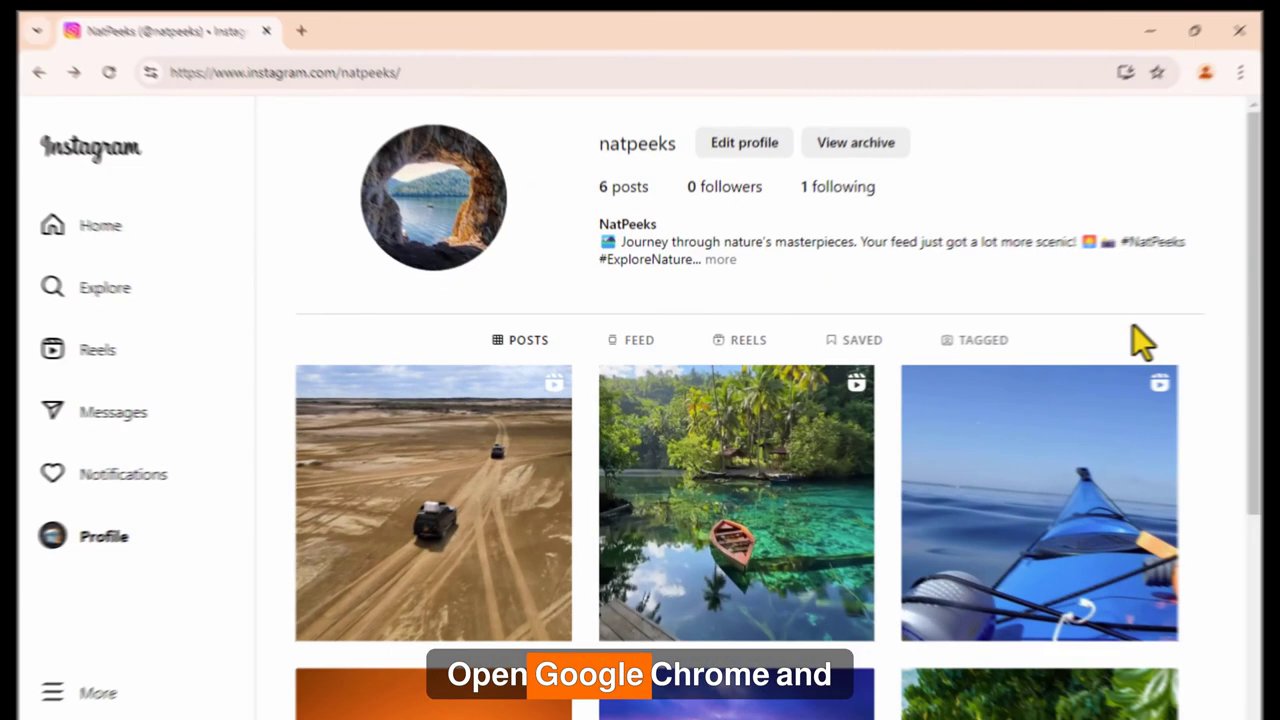
First, ensure you are using a desktop or laptop computer. This process is not designed for mobile devices. Open your Chrome browser and navigate to the Instagram website by typing instagram.com into the address bar. Log into your account if you aren’t already. This gives you full access to your feed, the Explore page, and any public profiles.
The Step-by-Step Download Process
Follow these instructions carefully. Each step builds upon the previous one to successfully locate and save the video file.
Step 1: Locate and Open Your Target Video
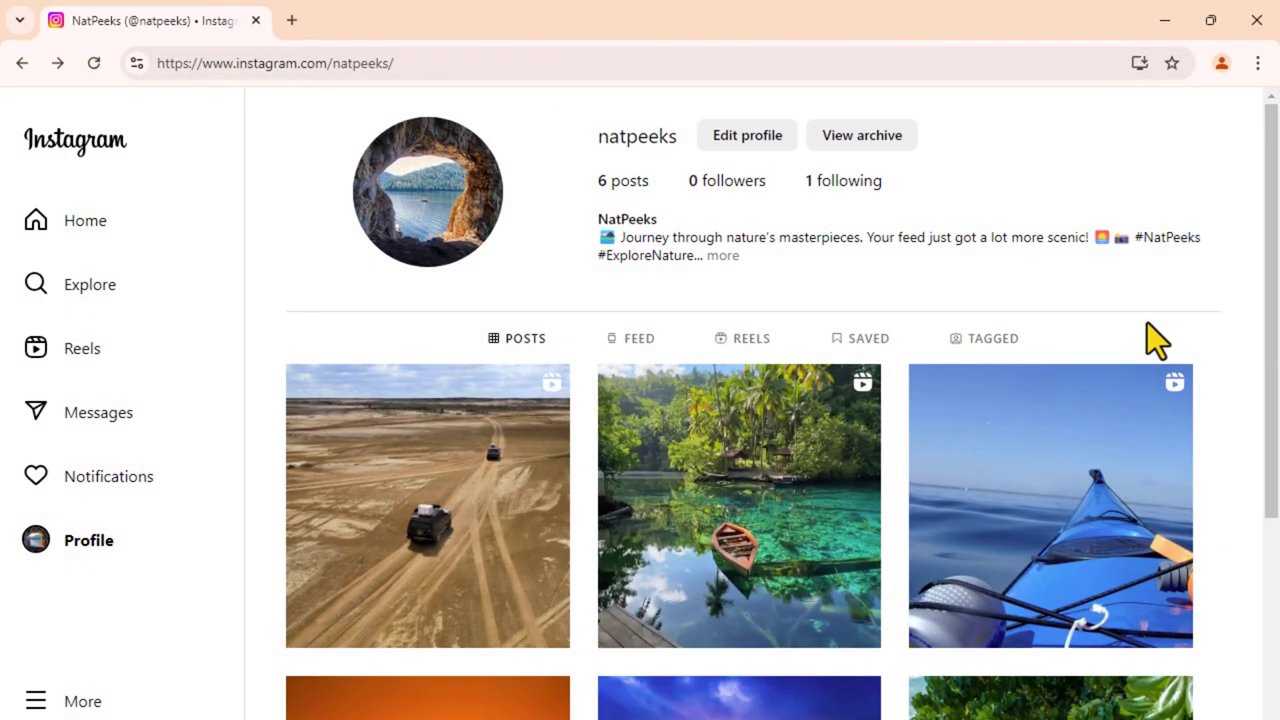
Browse Instagram as you normally would. Find the specific video you wish to download. This could be in your feed, on a profile page, or from a hashtag search. Click on the video to open it in its dedicated view, where it plays larger on the screen. For the next steps to work correctly, the video must be loaded and playing in this view.
Step 2: Access the Developer Tools
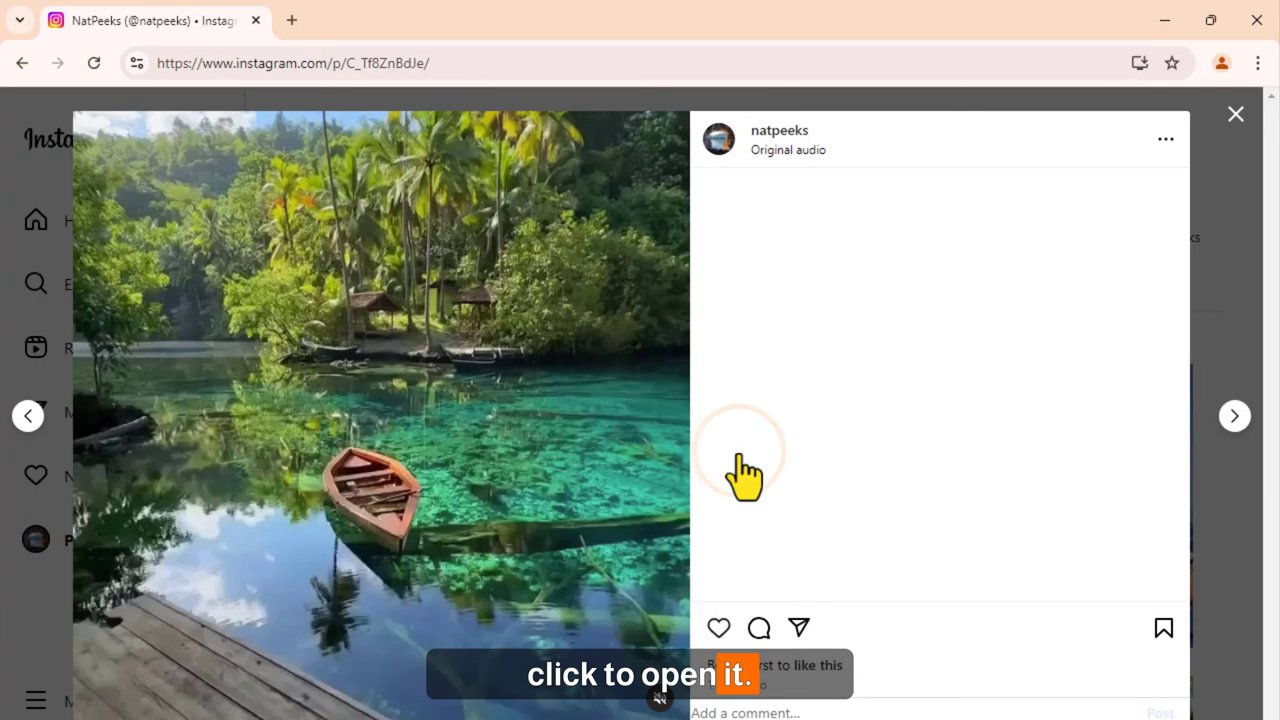
Once the video is open and playing, pause it by clicking on the video itself. This is an important preparatory step. Next, move your cursor to any blank area on the webpage (not directly on the video player) and right-click. In the context menu that appears, select the option labeled “Inspect”. This action will open the Developer Tools panel, usually appearing on the right side or bottom of your browser window.
Step 3: Switch to Mobile View and the Network Tab
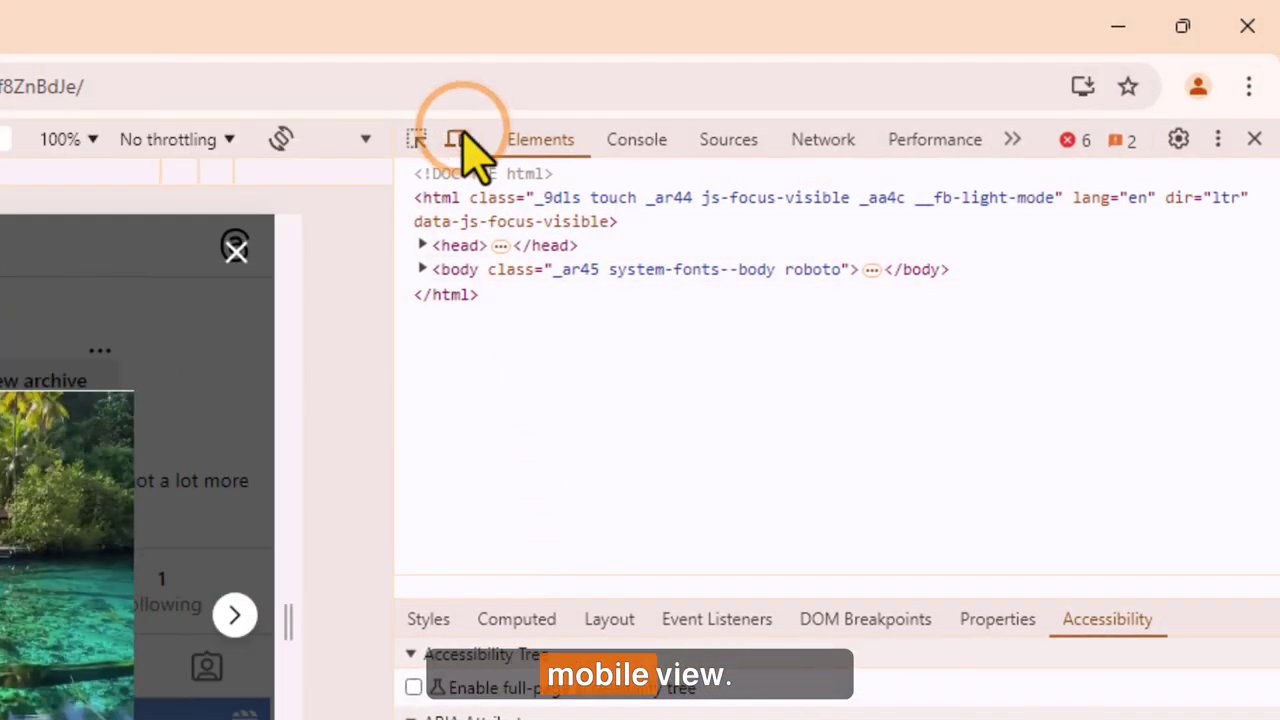
The Developer Tools panel can look complex, but we only need two specific tabs. First, look for the “Toggle device toolbar” icon. It typically looks like a small mobile phone and tablet. Click this icon. This switches the view of the Instagram page to a mobile device simulation. This step is crucial because it often makes the underlying video file easier to locate.
Now, look at the top row of the Developer Tools panel. You will see tabs like Elements, Console, and Network. Click on the “Network” tab. This tab monitors all the files your browser loads to display the webpage. To filter out the noise, locate the filter bar within the Network tab and click the “Media” filter option. This will ensure the panel only shows media files like videos and images.
Step 4: Reload and Capture the Video File
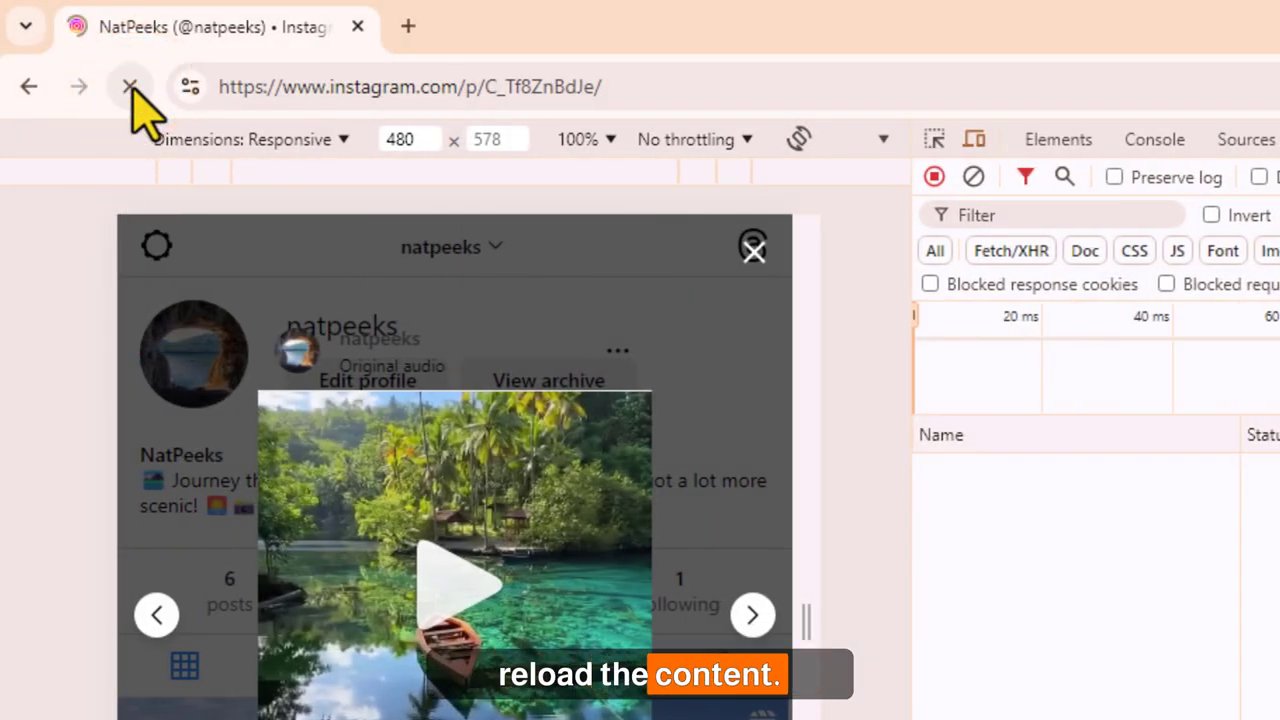
With the Network tab open and filtered to Media, you need to reload the video content. Find and click the circular refresh icon within the Developer Tools panel or simply refresh the main browser page. As the page reloads, watch the Network tab. A list of files will appear. Let the video play for a second, then pause it again. You should now see one or more file entries appear in the Network panel. These are the video files loaded by the page.
Step 5: Open and Save the Video
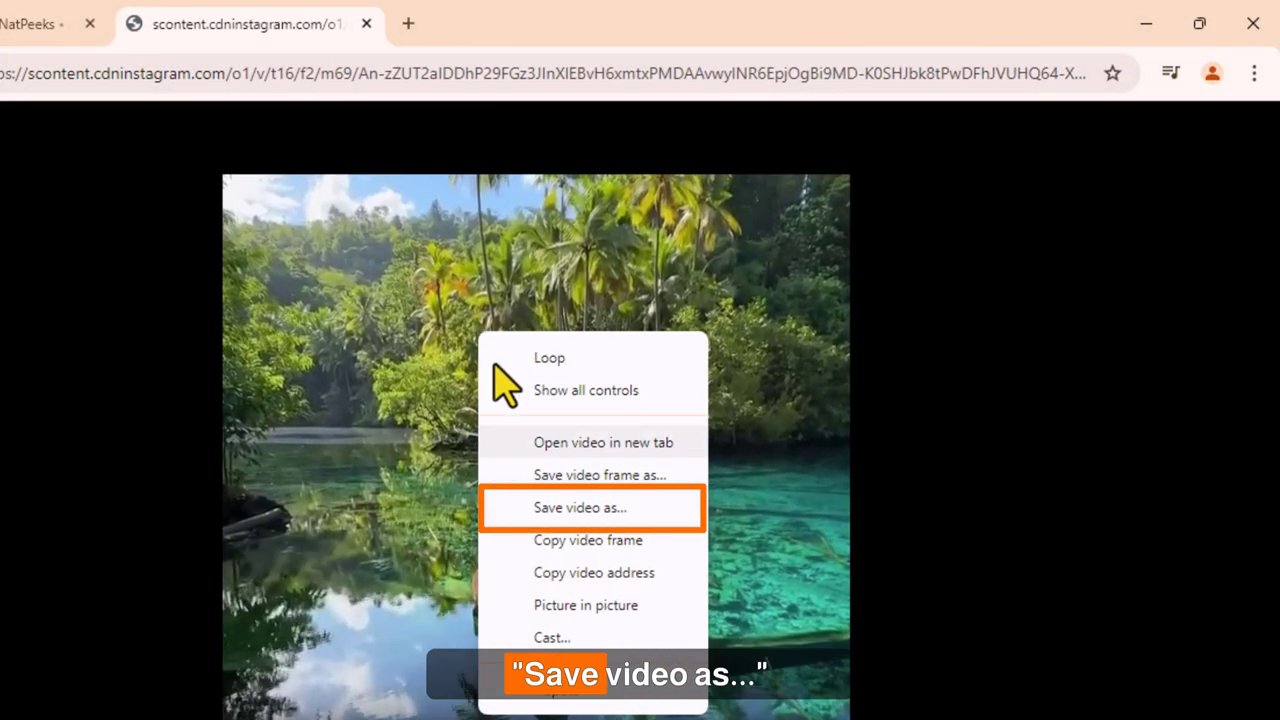
In the Network tab, you will see a file entry, often with a name containing “video.mp4” or similar. Right-click on this file link. From the menu that appears, select “Open in new tab”. A new browser tab will open, containing only the video player. Finally, right-click directly on the video playing in this new tab. Choose the option “Save video as…” from the menu. A standard file-saving dialog box from your computer’s operating system will pop up.
Here, you can choose the location on your PC where you want to save the file (e.g., Desktop, Downloads folder) and rename the video if you wish. Click “Save”, and the download will complete. You have now successfully saved the Instagram video to your computer.
Important Considerations and Best Practices
While this method is powerful, it’s essential to use it responsibly. Always respect copyright and intellectual property. Downloading videos for personal, offline viewing is generally acceptable, but you should never repost downloaded content as your own, use it for commercial purposes without permission, or infringe on the creator’s rights. This technique works best on public accounts and videos. Private account videos require authentication and may not appear in the Network tab if you are not following that account.
If you encounter issues, ensure you have followed each step precisely. Common fixes include making sure the video is paused before opening the Inspect tool, correctly applying the “Media” filter, and refreshing the page after switching to the mobile view. The exact labels in the right-click menus may vary slightly depending on your browser version, but the core options (“Inspect,” “Open in new tab,” “Save video as”) remain consistent.
Conclusion
Downloading Instagram videos to your PC is a straightforward process that leverages the built-in capabilities of your web browser. By using the Developer Tools to switch to a mobile view, filter network activity for media files, and directly access the video source, you can save any public Instagram video in just a few clicks. This method eliminates the need for third-party software, browser extensions, or online downloader websites, which can often be unreliable or pose security risks. Remember to use this knowledge ethically, saving content for your personal use while respecting the hard work of creators. Now you’re equipped with a valuable digital skill—go ahead and start building your offline collection of useful and inspiring Instagram videos.