TikTok is Back: Your Complete 2025 Guide to Navigating, Creating, and Mastering the App
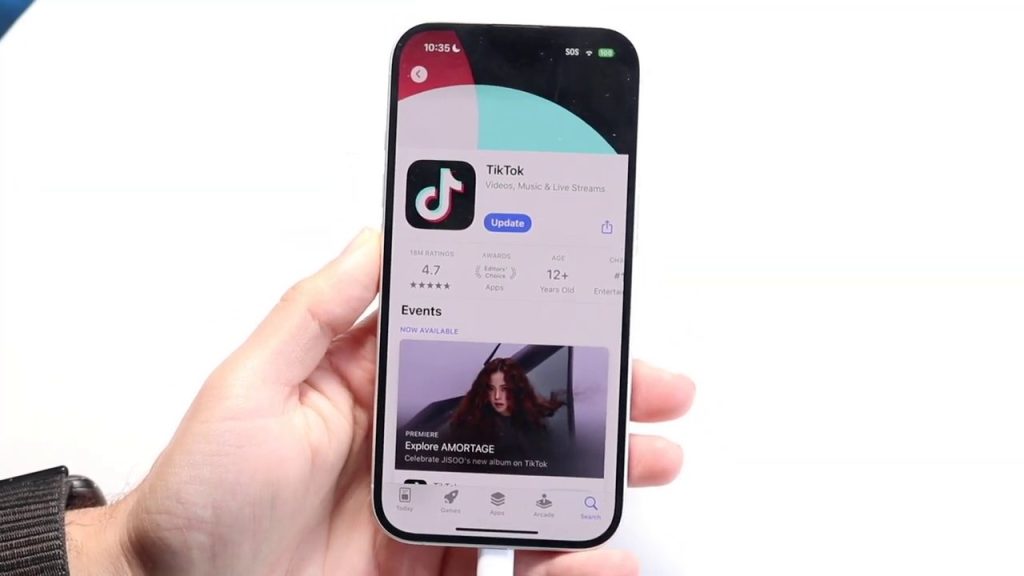
TikTok has solidified its place as one of the world’s most popular applications, and its recent return to official app stores makes it more accessible than ever. Whether you’re a first-time user or a returning creator, navigating its features can unlock a world of entertainment, connection, and creativity. This comprehensive guide will walk you through everything from initial setup to advanced posting techniques, ensuring you can confidently use TikTok on your Android, iPhone, or PC.
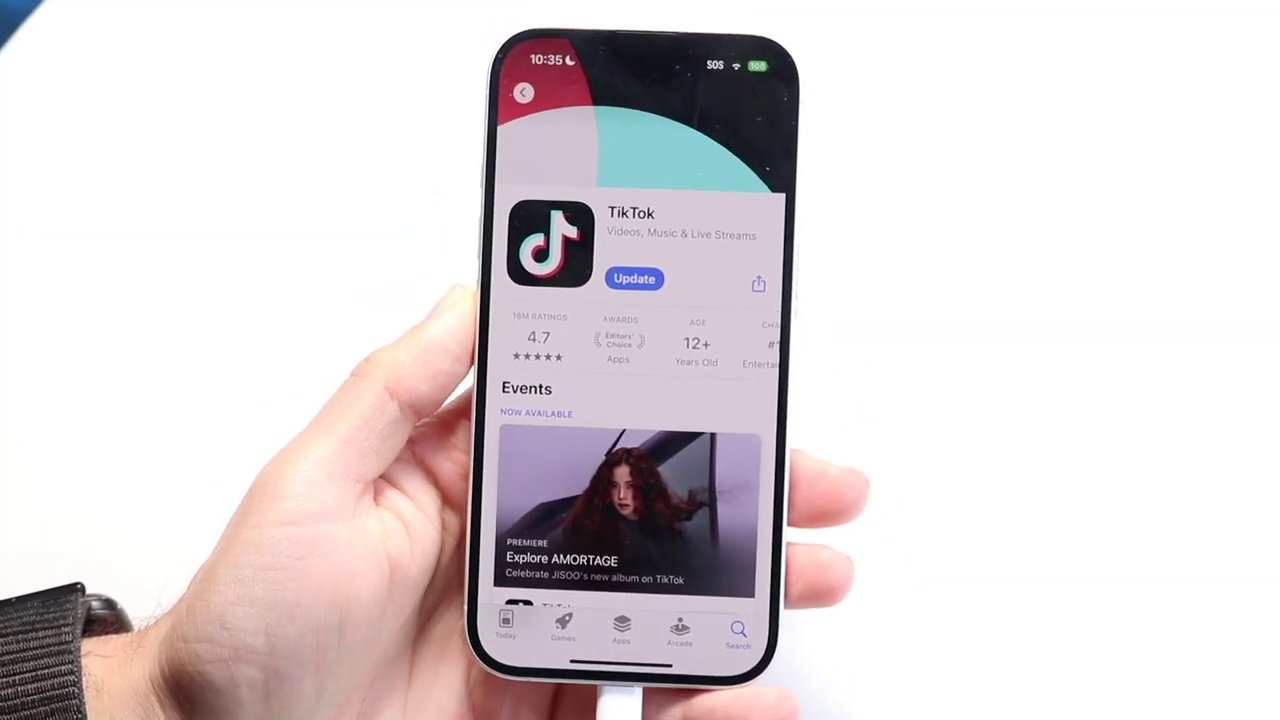
Getting Started with TikTok
The first step to joining the TikTok community is accessing the platform. You have two primary options: visiting the website directly or downloading the official mobile application.
- Access via Web: Simply navigate to TikTok.com in your desktop or mobile browser. This is a great way to browse content without installing an app.
- Download the App: For the full, feature-rich experience, download the TikTok app from your device’s official app store (Google Play Store or Apple App Store). The choice between web and app depends on your preference for convenience versus comprehensive functionality.
Once you’ve opened TikTok, you’ll be prompted to log in or create an account. You can sign in using various methods, including your Google account, Apple ID, or other social media profiles. After logging in, you’ll be greeted by the main interface—your gateway to endless content.
Understanding the TikTok Interface
The TikTok layout is designed for intuitive, vertical scrolling. At its heart is the For You Page (FYP), a personalized feed of videos curated by TikTok’s algorithm based on your interactions. Here’s a breakdown of the key navigation areas:
- Top Navigation Bar: This strip allows you to switch between different content feeds.
- Live: Tap this to view a list of creators who are currently broadcasting live streams.
- Following: This tab shows you the latest videos posted only by accounts you have chosen to follow.
- For You (FYP): The default and primary feed, offering an endless stream of videos TikTok thinks you’ll enjoy.
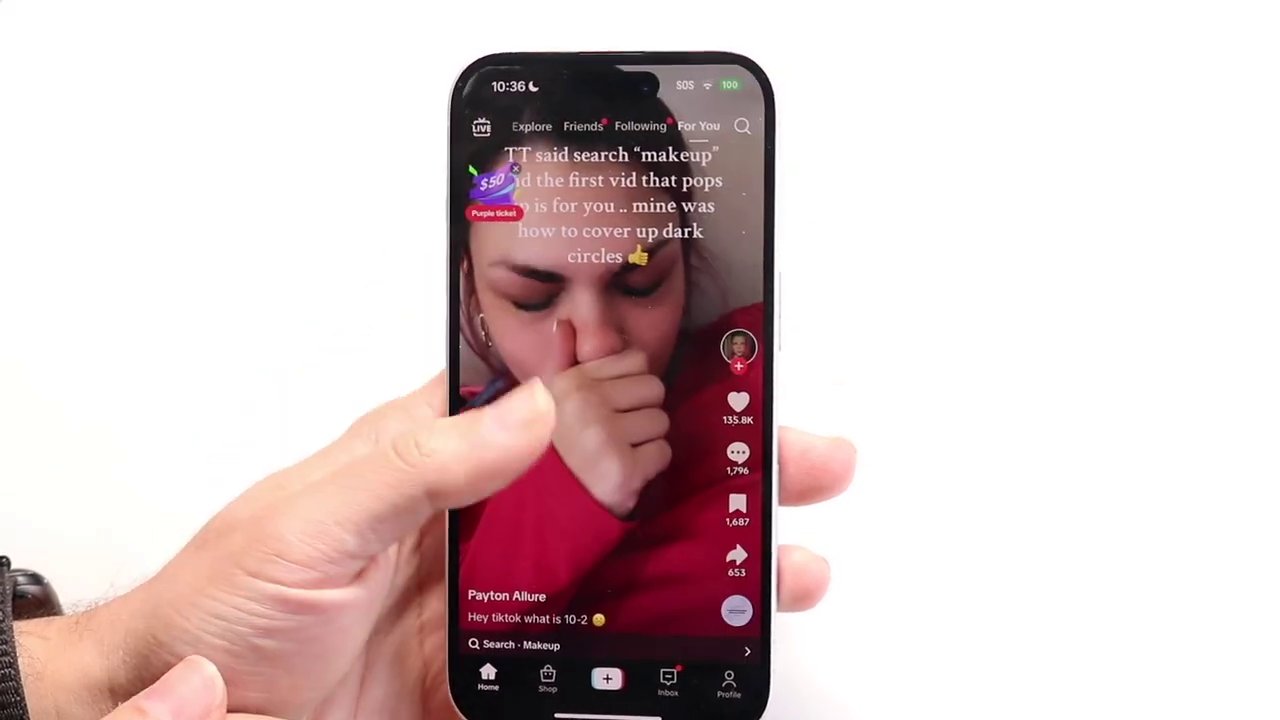
- Bottom Navigation Bar: This is your control center for core app functions.
- Home: Returns you to the main video feed.
- Discover (Magnifying Glass Icon): This is the search function. Tap it to find specific content, creators, sounds, or hashtags. The search feature unlocks a near-infinite library of TikToks.
- Create (+ Icon): The central button for uploading or recording your own videos.
- Inbox: Houses your notifications, comments, and direct messages from other users.
- Profile: Takes you to your personal page, where you can view your posted videos, drafts, liked content, and profile settings.
Mastering Video Playback & Interaction
The true TikTok experience lies in watching and interacting with videos. When a video is playing on your feed, you have numerous controls at your fingertips.
On the right side of a video, you’ll find a vertical array of interaction buttons:
– Heart (Like): Tap to like the video and signal your appreciation to the creator.
– Comment Bubble: Opens the comments section where you can read reactions, leave your own comment, and even like or reply to others.
– Share Arrow: Allows you to send the video via other apps, copy the link, or save it directly to your device. For those looking to save content for inspiration or repurposing, our guide on downloading TikTok videos without the watermark can be an invaluable resource.
– Bookmark (Save): Adds the video to your private “Favorites” collection for easy viewing later.
Beneath the video, you’ll see the creator’s username and a description. You can tap on the username or profile picture to visit their profile page, where you can see all their videos, follower counts, and follow them. For advanced users interested in archiving a creator’s work, techniques for downloading an entire TikTok channel explore methods beyond the basic save function.
Playback Controls:
– Pause: Simply tap the center of the video to pause and play.
– Scrub: Drag the progress bar at the bottom to skip forward or backward in the video.
– Speed Control: Press and hold on the video to reveal a menu that includes options to change the playback speed.
Creating and Uploading Your Own TikTok
Ready to contribute your own voice? Tap the + (Create) button at the bottom center of the screen. This opens TikTok’s robust camera and upload studio.
- Record or Upload: You can record a new video directly within the app using the red button, or tap “Upload” to select a pre-made video or photo from your device’s gallery.
- Editing & Enhancement: Before posting, you can enhance your clip.
- Templates & Filters: On the left side, explore trending templates, filters, and effects to instantly elevate your video’s style.
- Text & Stickers: Add captions, subtitles, or fun stickers to engage viewers.
- Advanced Editing: For more sophisticated edits, many creators use external apps like CapCut (which is owned by TikTok’s parent company) and then import the finished product. This workflow allows for professional-level cuts, transitions, and audio syncing.
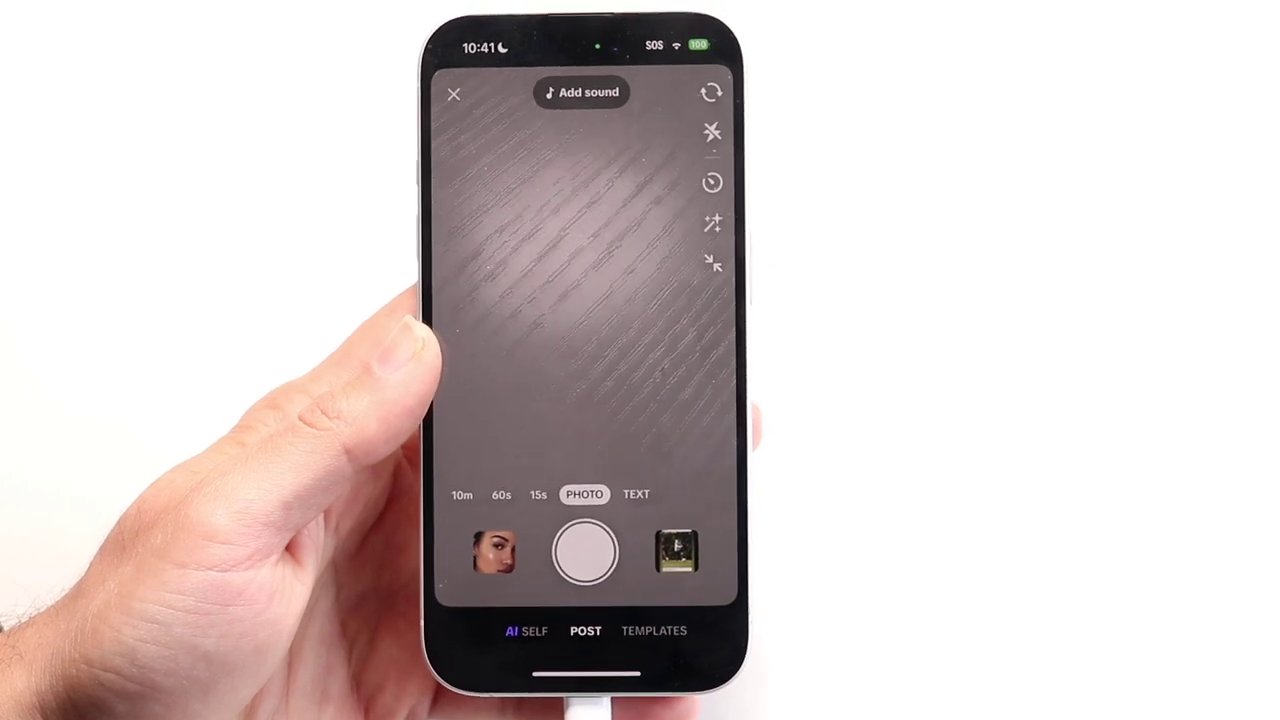
- Posting Process: After editing, tap “Next.”
- Craft Your Caption: Write a compelling description, add relevant hashtags, and tag friends or collaborators.
- Adjust Settings: Choose your cover thumbnail, control who can comment or duet with your video, and select the visibility (Public, Friends, Private).
- Post or Draft: Hit “Post” to share immediately, or select “Save to Drafts” to finish and publish later.
Exploring Additional Features: TikTok Shop & Profiles
TikTok has evolved into a multifaceted platform. The Shop icon in the navigation bar opens the integrated TikTok Shop, where you can browse and purchase products directly from videos and dedicated storefronts. It’s a seamless blend of entertainment and e-commerce.
Your Profile page is your digital calling card. It displays your bio, all the videos you’ve posted, and tabs for your “Liked” videos. It’s also where you manage your settings, privacy, and balance if you use the TikTok Shop. Understanding the signals and trends on platforms like TikTok is key for any digital creator; exploring the hidden language of digital content can provide deeper insights into what makes content successful.
Pro Tips and Final Recommendations
To ensure the best TikTok experience, one final piece of advice is crucial: keep your app updated. Developers constantly release new features, interface improvements, and critical bug fixes. Enable automatic updates in your device’s app store settings or manually check for updates regularly. This guarantees you always have access to the latest tools and the most stable version of the app.
TikTok’s design is intentionally straightforward, removing barriers to both consumption and creation. The magic happens when you start scrolling, interacting, and eventually, posting your own content. The algorithm learns from your likes, shares, and watch time, continually refining your For You Page to show you more of what you love.
Conclusion
From its triumphant return to app stores to its deeply engaging, scrollable interface, TikTok remains a dominant force in social media. This guide has walked you through the essentials: accessing the app, navigating its intuitive layout, interacting with content, and creating your own videos. Whether your goal is to be entertained, connect with a community, or build a following, the power is now in your hands. Remember to explore, engage authentically, and don’t forget to update your app to enjoy all the innovative features TikTok has to offer. Dive in, the next viral trend awaits your discovery.