Your Complete Guide to Downloading Instagram Videos and Reels for Personal Use
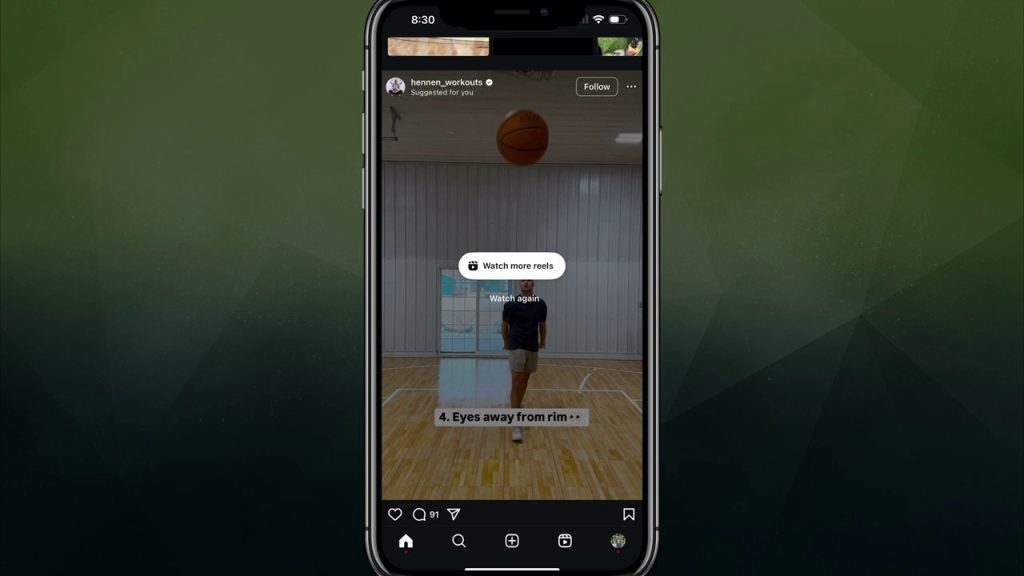
Have you ever scrolled through Instagram, stumbled upon a hilarious reel or a beautiful video, and wished you could save it to your phone? Perhaps you want to keep a tutorial handy or save a memory you’ve created. The good news is that Instagram has a built-in feature that makes downloading content straightforward. This guide will walk you through the simple steps to download videos and reels directly from the app, while clarifying the crucial rules about how you can use this downloaded content.
How to Download Videos and Reels from Your Feed
The process for saving a video or reel you see in your Instagram feed is intuitive and takes just a few taps. Whether it’s a friend’s post or content from a creator you follow, here’s how to do it.
- Locate the Content: First, find the video or reel you wish to download in your main feed, the Reels tab, or on a profile page.
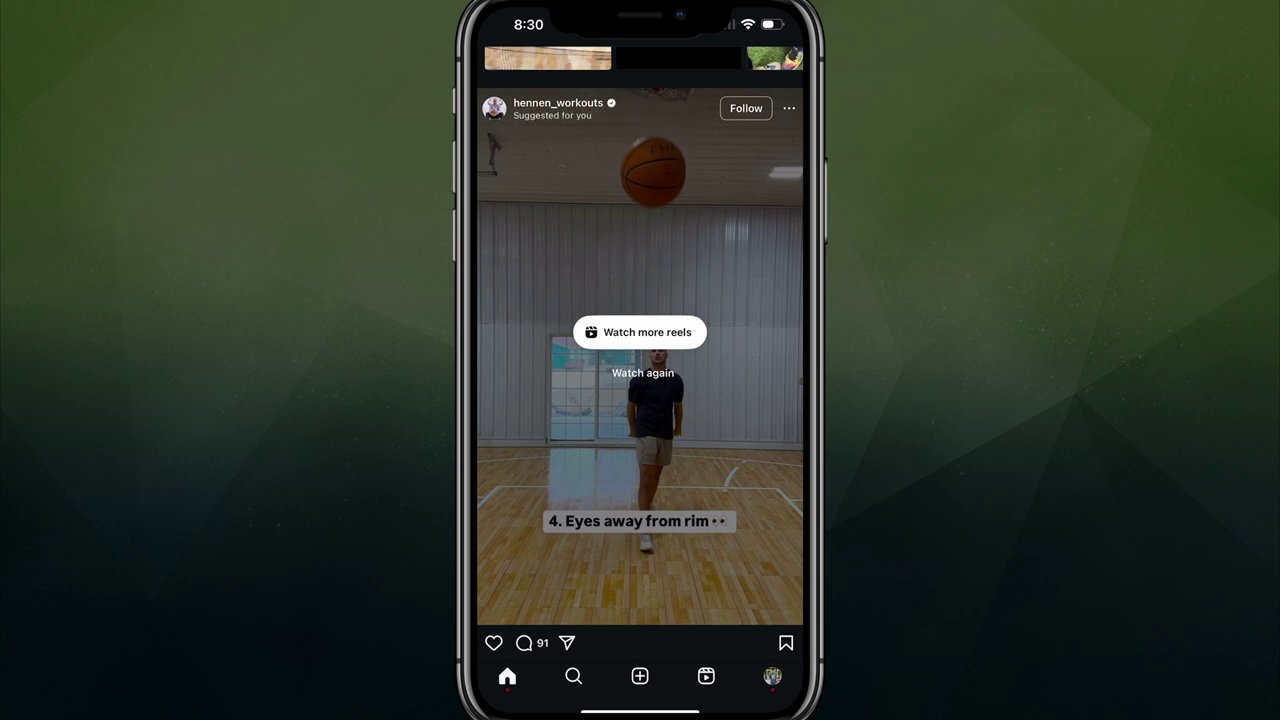
- Tap the Share Button: On the post, you will see a paper airplane icon, which is the Share button. You can tap this icon directly from the feed view, or you can tap into the video to view it full-screen and then tap the share button there.
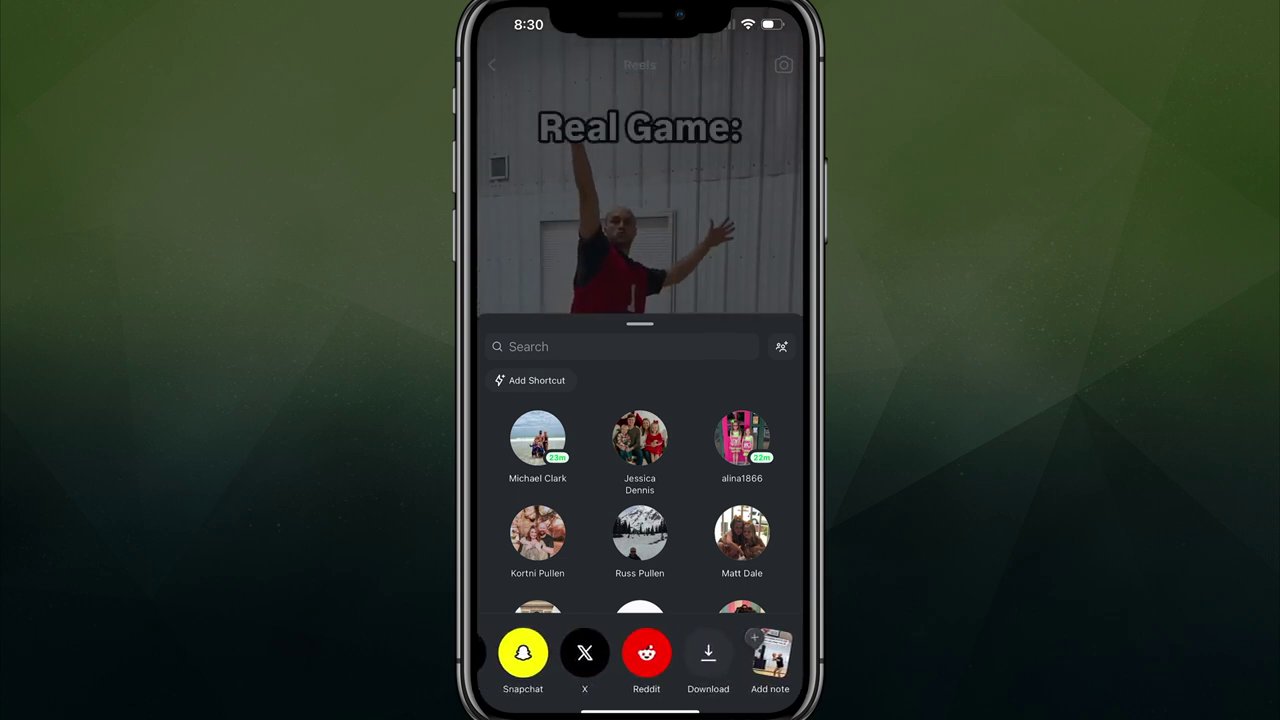
- Swipe to Find Download: Tapping the share button opens a menu of options at the bottom of your screen. Swipe all the way to the right on this row of icons until you see the button labeled Download.
- Confirm and Save: Tap the Download button. Instagram will display a notice reminding you that the downloader is for personal use only and cannot be used for commercial purposes. Once you proceed, the app will save the video directly to your device’s camera roll or gallery.
After the download is complete, you can navigate to your phone’s photo gallery. The video will typically appear at the end of your most recent photos or in a dedicated folder, ready for you to view offline.
Important Considerations and Limitations
While the download feature is convenient, it comes with specific restrictions and isn’t universally available. Understanding these points is essential to use the feature responsibly and avoid frustration.
- Strictly for Personal Use: This is the most critical rule. Instagram’s download feature is designed for personal, non-commercial use only. The notice that appears when you tap “Download” explicitly states this. You cannot repost, redistribute, or use downloaded content for any commercial purpose without the explicit permission of the original creator. This respects the intellectual property rights of the people who make the content.
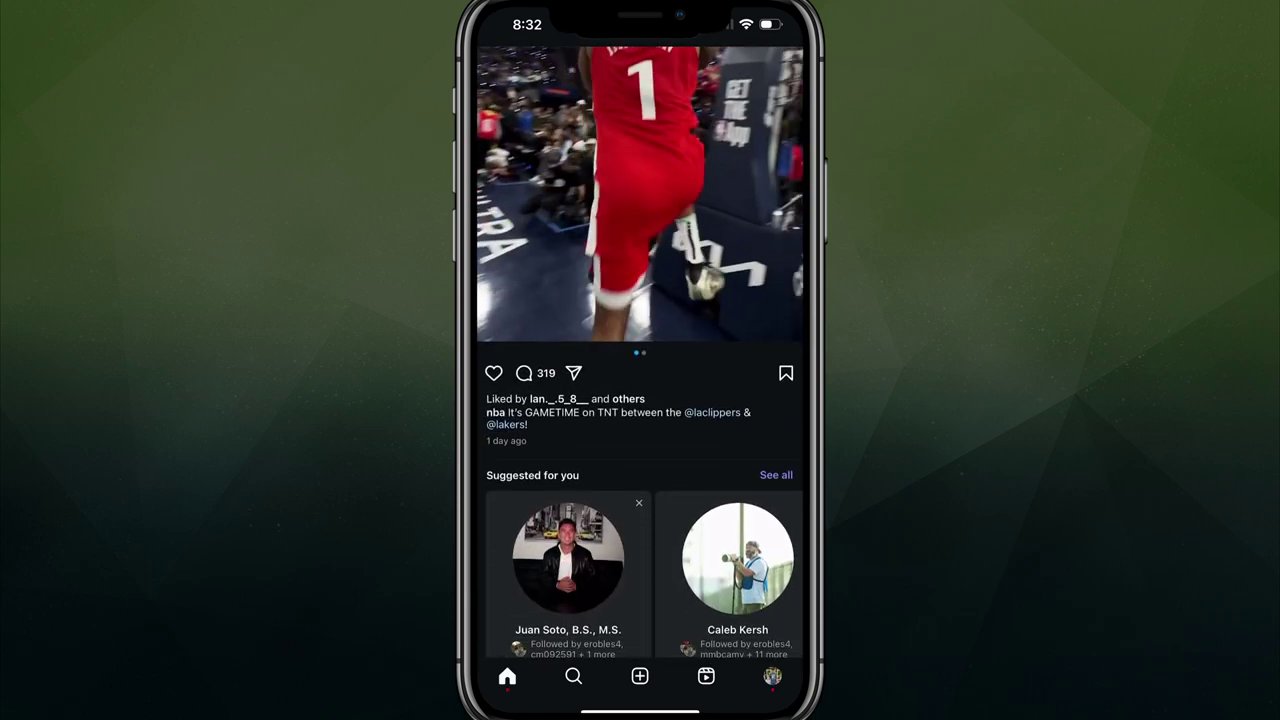
- Not All Videos Are Downloadable: The ability to download a video is controlled by the person who posted it. When a user uploads a reel or video, they have a setting to enable or disable the download option. For example, many official accounts from organizations like sports leagues or large media companies disable this feature to protect their content.
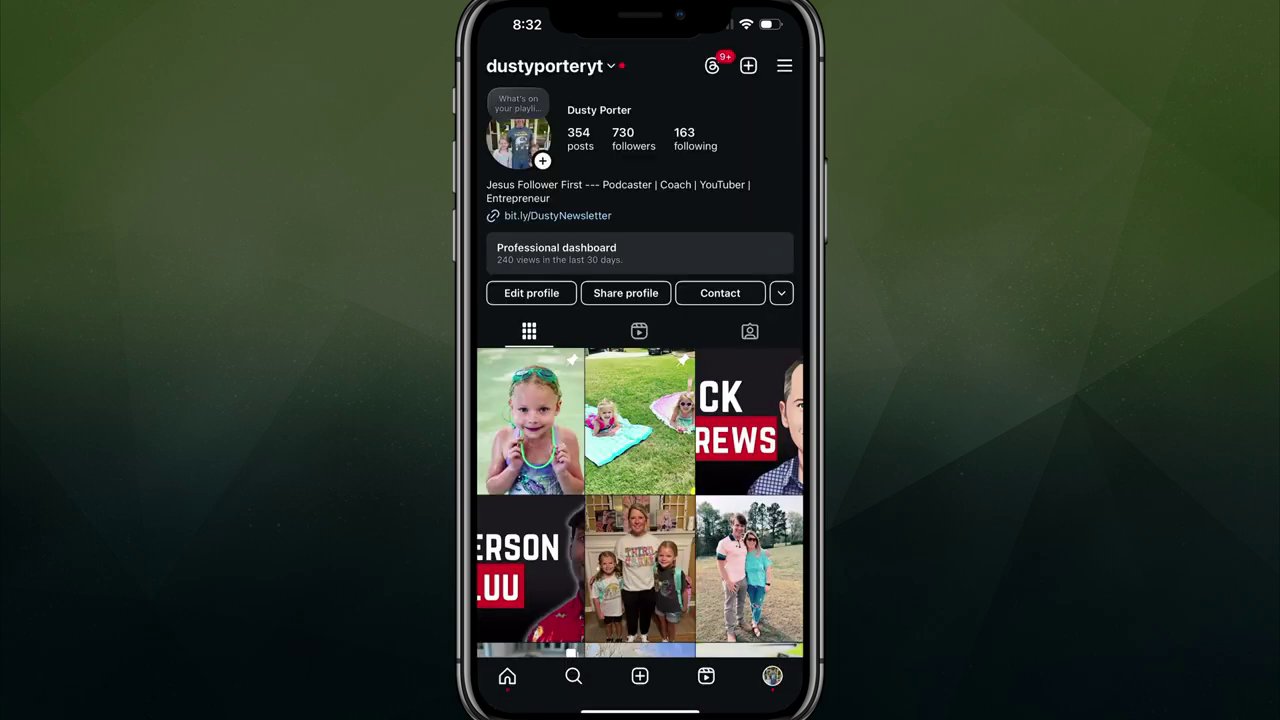
If you tap the share button on such a video and swipe through the options, you will find that the Download button is simply not there. This is not a glitch; it’s a deliberate choice made by the content owner. - Downloading Your Own Content: The process works seamlessly for content you have posted yourself. You can go to your profile, select one of your own videos or reels, and follow the same steps: tap the share button, swipe right, and tap Download. Since you own this content, you are free to use the downloaded file however you wish, such as for compiling a portfolio or sharing on another platform.
Step-by-Step Walkthrough for Different Scenarios
Let’s break down the process into two clear scenarios to ensure you can handle any situation.
Scenario 1: Downloading Someone Else’s Content
This is for saving videos from friends, family, or creators you follow for your own offline viewing.
- Open the Instagram app and find the video or reel in your feed.
- Tap the paper airplane (Share) icon on the post.
- In the menu that appears at the bottom, swipe horizontally through the icons until you see Download.
- Tap Download and acknowledge the personal-use notice.
- Open your phone’s Photos or Gallery app to find the saved video.
Scenario 2: Downloading Your Own Posted Content
This is useful for backing up your creations or repurposing them elsewhere.
- Navigate to your Instagram profile and tap on the video or reel you want to save.
- Tap the three dots (…) or the share button on your own post.
- Swipe through the bottom menu to the right until you find the Download option.
- Tap it. The video will save to your device without the personal-use reminder, as it is your property.
Conclusion and Key Takeaways
Downloading videos and reels from Instagram is a simple, built-in feature that enhances your user experience. By tapping the share button and swiping to the download option, you can quickly save content for offline enjoyment. However, this convenience is paired with significant responsibility.
The core principle is clear: any content you download that was created by someone else is for your personal use only. Always respect the creator’s rights and their choice to enable or disable the download function. For your own content, the feature serves as an easy export tool. By following these steps and guidelines, you can make the most of Instagram’s features while being a respectful member of the community. If you have any further questions about using Instagram’s features, feel free to explore their help center or community forums for more information.
