Your Complete Guide to Downloading YouTube Videos for Offline Viewing on PC
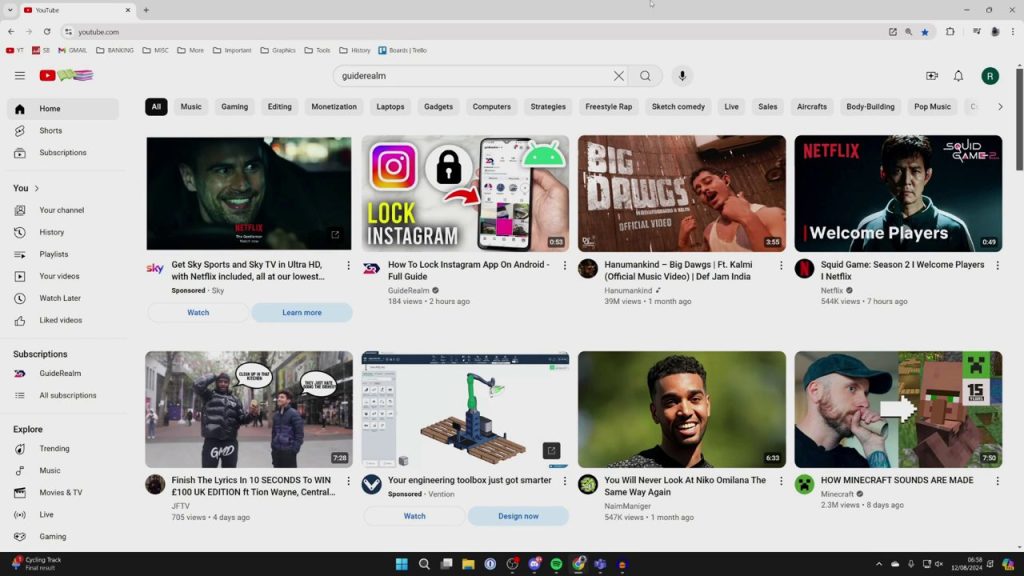
Have you ever wanted to save your favorite YouTube tutorial, music video, or documentary to watch later without an internet connection? The ability to download videos directly from YouTube is a powerful feature for commuters, travelers, or anyone looking to manage their data usage. This guide will walk you through the simple, official process of downloading YouTube videos to your laptop or PC, ensuring your content is always accessible. We’ll cover everything from finding the video to locating your downloaded files, with one key requirement in mind.
Understanding the Official YouTube Download Feature
Before you begin, it’s crucial to understand how YouTube’s native download functionality works. Unlike third-party software or websites, this method uses YouTube’s built-in feature, which guarantees compatibility and safety. The core requirement for this process is a YouTube Premium subscription.
YouTube Premium is YouTube’s paid membership service. It offers several benefits, including ad-free viewing, background play on mobile devices, and access to YouTube Music Premium. The ability to download videos for offline viewing is one of its most popular features. This guide focuses exclusively on this official, integrated method, which is both secure and straightforward.
Step-by-Step: How to Download a YouTube Video
The process is designed to be user-friendly and can be completed in just a few clicks once you have the necessary subscription. Follow these steps carefully.
Step 1: Locate Your Video
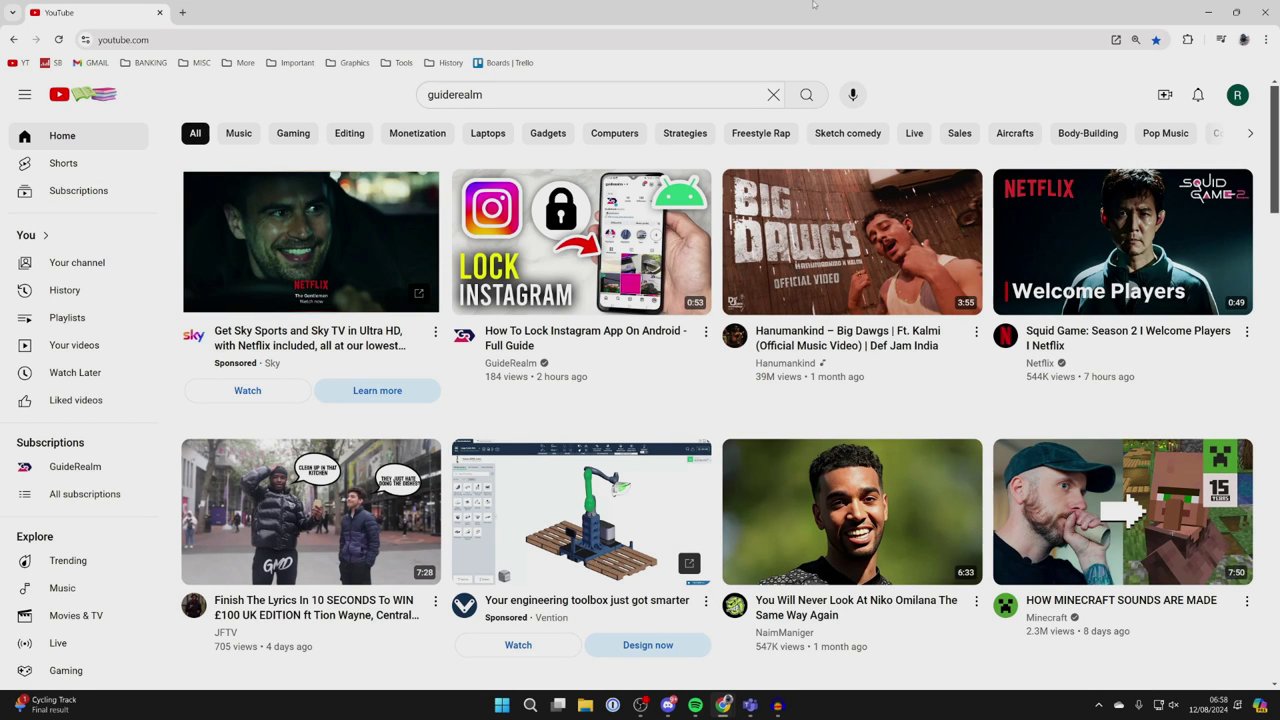
The first step is to navigate to the video you wish to download. You can find this through your YouTube homepage recommendations, your subscription feed, or by using the search bar. The source doesn’t matter; you simply need to arrive at the video’s watch page where the player is visible.
Step 2: Find the Download Button
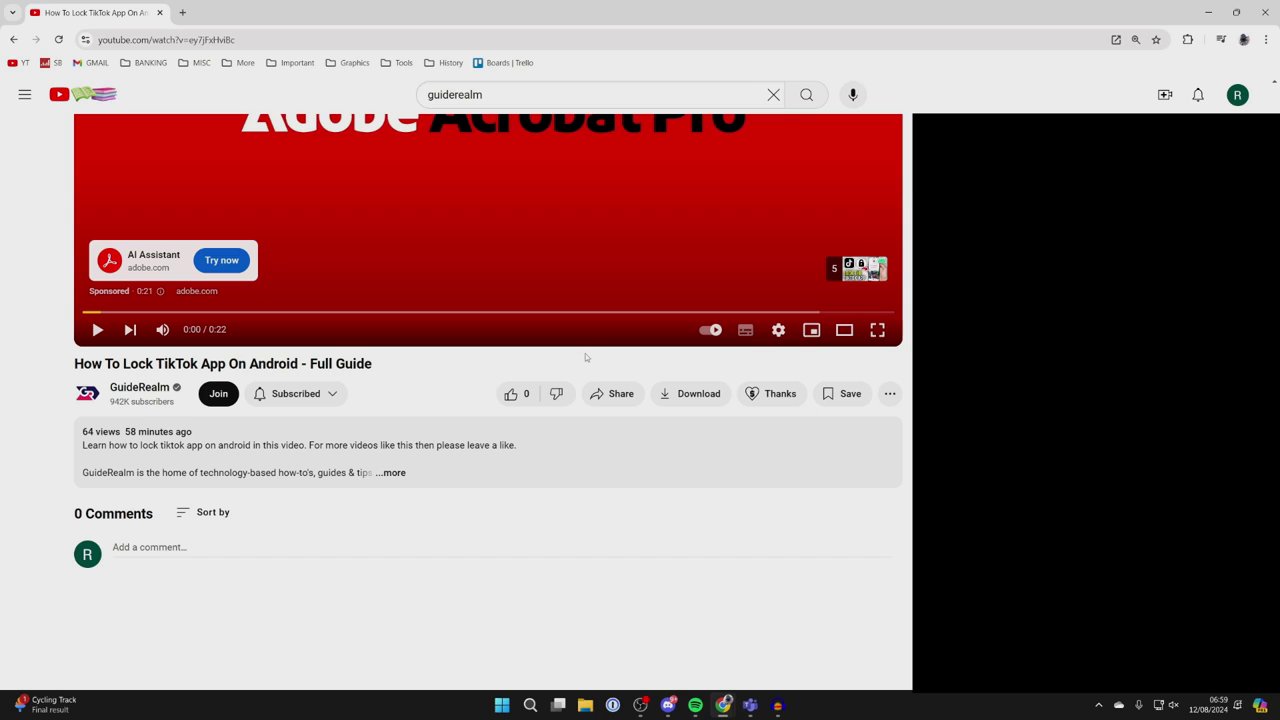
Once the video is playing, look to the right side of the video player, directly beneath it. This area contains interactive buttons such as Like, Dislike, Share, and Save. For videos that are eligible for download (most are, except for some live streams or content with restrictions), you will see a Download button here, represented by a downward arrow icon.
Step 3: Initiate the Download
If you have an active YouTube Premium subscription, clicking the Download button will immediately begin the download process. You will typically see a progress indicator or the icon will change to show the download is in progress. The video file will be saved directly to the YouTube app’s or website’s offline storage. It’s that simple—no complicated settings or file paths to configure initially.
Accessing and Managing Your Downloaded Videos
After your video has finished downloading, you’ll naturally want to know where to find it. YouTube organizes offline content in a dedicated, easy-to-access section.
To locate your downloads, look at the top-left corner of the YouTube interface on a PC. Click on the three horizontal bars (often called the “hamburger menu”) to open the main guide or menu panel. Within this menu, you will find a section labeled Downloads. Clicking on this will take you to a library of all the videos you have saved for offline viewing on that device.
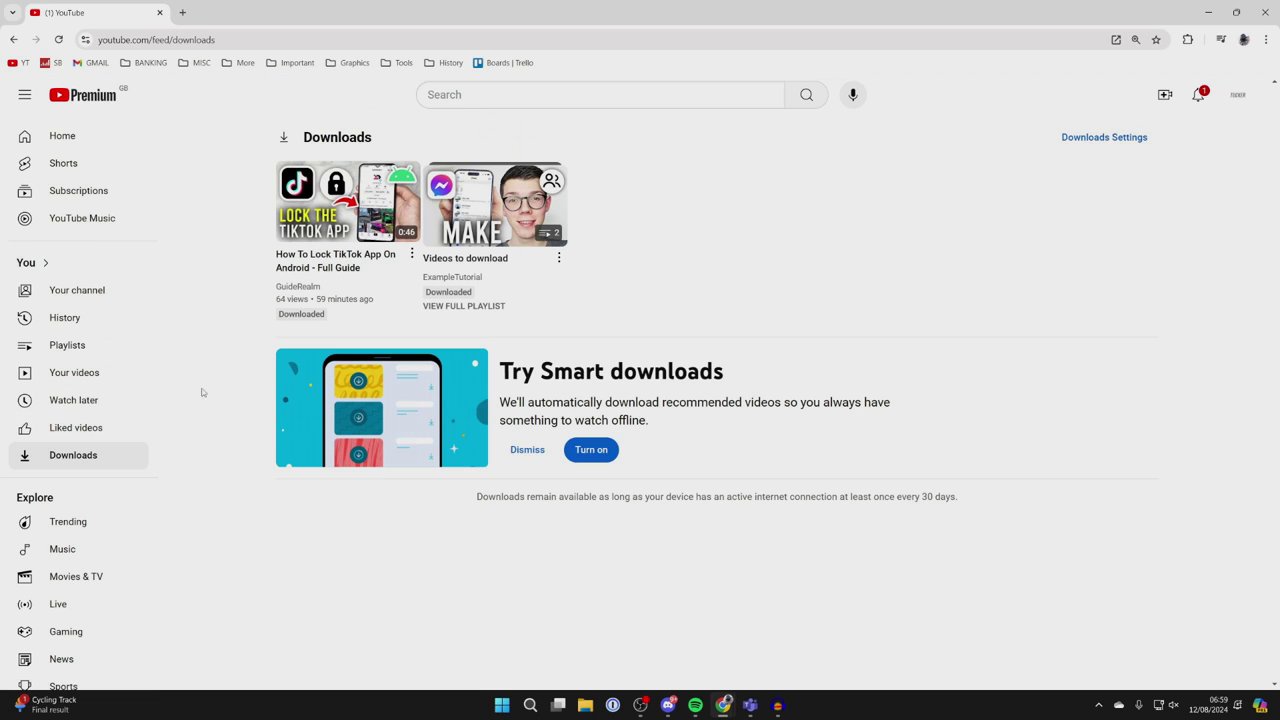
This Downloads library allows you to play your videos back at any time, regardless of your internet connection. It’s perfect for plane journeys, areas with poor connectivity, or simply saving on mobile data if you’re watching on a laptop with a cellular connection. Managing your downloads here is also straightforward; you can typically remove videos from offline storage to free up space on your device when you no longer need them.
Key Considerations and Benefits
Using the official download method via YouTube Premium comes with important context. First, the downloaded videos are generally encrypted and can only be played within the YouTube app or website. You cannot transfer the video file to other media players or devices outside of the YouTube ecosystem. This is part of YouTube’s content protection system.
The primary benefit, however, is immense convenience and reliability. You gain the ability to build a personal, offline library of educational content, entertainment, and music videos. For creators and avid consumers of video content, this feature transforms YouTube into a more flexible platform. If you’re interested in repurposing content for creative projects, understanding how to legally access media is the first step. For instance, knowing how to save videos can complement skills like mastering video editing for professional results. Similarly, for those focused on content strategy, leveraging available features on one platform can inform approaches on others, such as learning to convert TikTok views into real sales.
Conclusion
Downloading YouTube videos on your PC or laptop is a simple process that hinges on having a YouTube Premium subscription. By finding your desired video, clicking the download button below the player, and accessing your collection via the menu’s “Downloads” section, you can effortlessly save content for offline viewing. This official method provides a safe, secure, and integrated way to ensure your favorite videos are always at your fingertips, without needing an internet connection. Whether for learning, entertainment, or travel, mastering this feature significantly enhances your YouTube experience. Remember, exploring the full suite of tools available on digital platforms, from downloading to editing, is key to modern digital literacy and content creation.
