Your Complete Guide to Downloading YouTube Videos: Official & Premium Methods Explained

Ever wanted to save a YouTube video directly to your device? Whether you’re a creator looking to back up your own content or a viewer wanting to watch your favorite tutorials offline, downloading videos from YouTube is a common need. This guide will walk you through the official, legitimate ways to download videos, covering both your own uploads and content from other creators using YouTube’s built-in features. We’ll demystify the process, step-by-step, so you can build your offline library with confidence.

Why Download YouTube Videos?
There are several practical reasons why you might want to download a video from YouTube. The most common motivations include creating a backup of your own uploaded content. For creators, this is a crucial part of a solid digital archive strategy, ensuring you have a local copy of your work. Another primary reason is for offline viewing. Downloading allows you to save a video to your computer or mobile device to watch later without an internet connection, which is perfect for commuting, traveling, or areas with unreliable connectivity.
Understanding your reason for downloading is the first step, as it determines which method you’ll use. The process differs significantly depending on whether you own the video or not.
How to Download Your Own YouTube Videos
This is the most straightforward method, as YouTube provides a direct download option for content you have uploaded to your channel. There’s no additional cost, and the process is integrated into YouTube Studio. This is ideal for archiving your original videos in their uploaded quality.
Here is the step-by-step process to download your own content:
- Navigate to YouTube Studio: Open the YouTube website and ensure you are signed into the account that owns the videos. Click on your profile icon in the top-right corner of the screen and select YouTube Studio from the menu.
- Access Your Content: Within YouTube Studio, look for the menu on the left-hand side and click on Content. This will display a list of all the videos you have uploaded to your channel.
- Initiate the Download: Find the specific video you wish to download in the list. Click on the More button (often represented by three dots or a vertical ellipsis) associated with that video. From the dropdown menu that appears, select Download.
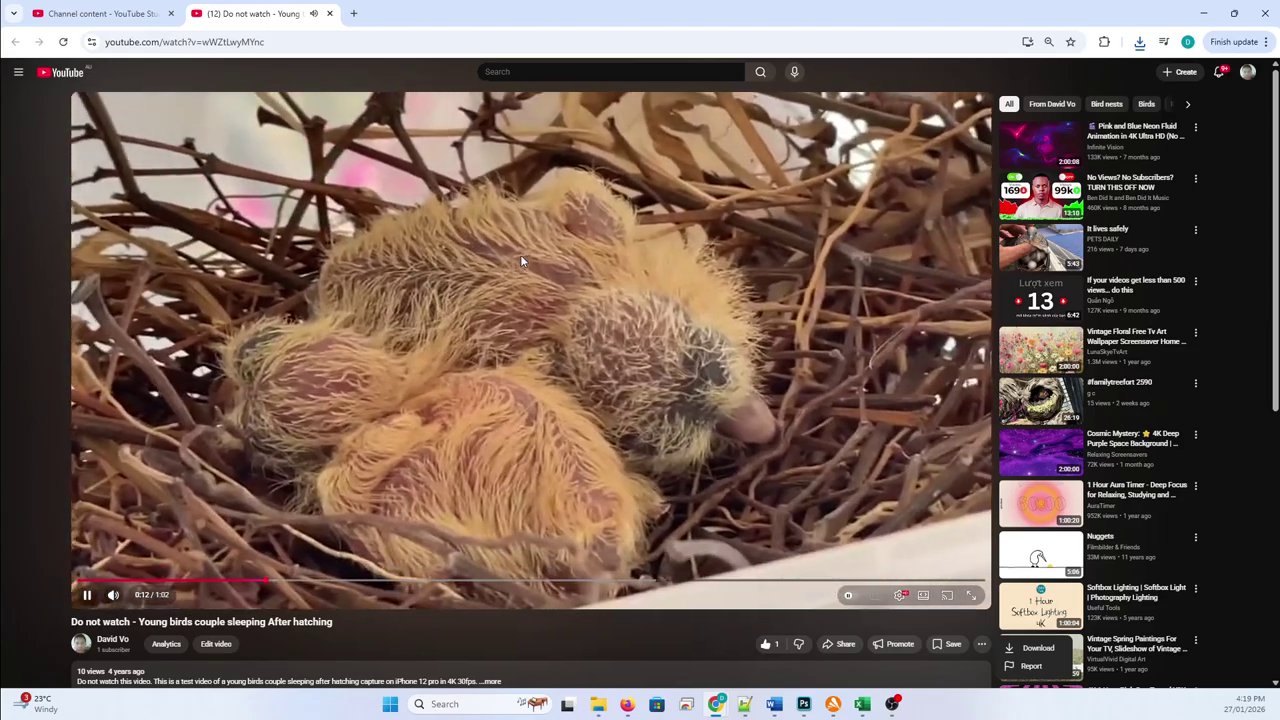
- Save the File: Your browser will immediately begin downloading the video file. Once the download is complete, you can click on the downloaded file link in your browser or find it in your computer’s downloads folder to open and watch the video locally.
This method provides a simple and official way to maintain a personal backup of your creative work. For creators looking to repurpose their YouTube content, having the original file is the first step. If you’re interested in editing these downloaded videos, our guide on Mastering Video Editing: A Step-by-Step Guide to Applying Filters and Effects for Professional Results can help you transform your raw footage.
How to Download Other Creators’ Videos (YouTube Premium)
Downloading videos that belong to other channels involves a different, but equally official, pathway. YouTube allows this functionality through its subscription service, YouTube Premium. It’s important to understand that this is a paid feature designed for offline viewing within the YouTube ecosystem, not for redistribution.
The key requirement is an active YouTube Premium subscription. This service includes several benefits like ad-free viewing, background play, and access to YouTube Music, with the offline download feature being a central component. A subscription involves paying a recurring monthly fee.
Once you are a YouTube Premium member, downloading videos for offline viewing is simple:
- Find the Video: Browse YouTube and navigate to the video you wish to save for offline viewing.
- Locate the Download Button: While watching the video, look for the Download button. It is typically found by clicking the More button (the three-dot menu or “chevron” icon) below the video player on the right side. In the menu that appears, you will see the Download option.
- Confirm and Save: Click Download. The video will be saved to your device’s YouTube app for offline access within the app itself. It’s crucial to note that videos downloaded via YouTube Premium are typically encrypted and can only be played through the official YouTube app, not as standalone files on your computer.
This system provides a legal and convenient way to build a portable library of content for personal enjoyment. The subscription model supports the creators you watch through the platform’s revenue sharing. For viewers who consume a lot of content across different platforms, understanding how to leverage these official features is part of a modern digital skillset, much like knowing how to Unlock the Big Screen: Your Complete Guide to Installing TikTok on Any Smart TV for a better viewing experience.
Key Considerations and Best Practices
When downloading YouTube videos, especially through official means, there are important factors to keep in mind:
- Copyright and Fair Use: Always respect copyright laws. Downloading other people’s content via YouTube Premium is for personal, offline viewing only. You should never redistribute, edit, or re-upload downloaded content without explicit permission from the copyright holder.
- Video Quality: Downloads via YouTube Studio will be in the quality you originally uploaded. Downloads via YouTube Premium often allow you to choose a quality setting (like 720p or 1080p) to manage storage space on your device.
- Storage Management: Downloaded videos can take up significant storage space. Regularly manage your offline library within the YouTube app to delete videos you’ve already watched.
- Subscription Benefits: Weigh the cost of YouTube Premium against its full suite of benefits—ad-free viewing, background play, and access to YouTube Music—to determine if it’s the right value for your viewing habits beyond just downloads.
Conclusion
Downloading YouTube videos can be accomplished safely and legally through YouTube’s own tools. For backing up your own content, use the free download option in YouTube Studio. For saving other creators’ videos to watch offline, a YouTube Premium subscription is the official and supported method. By following these steps, you can enjoy your favorite videos anytime, anywhere, while fully supporting the platform and the creators who make the content you love. Whether you’re archiving your own work or curating a personal offline playlist, understanding these methods empowers you to take control of your digital media consumption.