Your Complete Guide to Downloading YouTube Videos on Mobile for Offline Viewing

In today’s fast-paced world, having access to your favorite videos without an internet connection is more than a convenience—it’s a necessity. This guide will walk you through the simple, official process of downloading YouTube videos directly to your mobile device using the YouTube app. Whether you’re preparing for a long flight, commuting through areas with spotty service, or just want to save on data, mastering this feature will transform how you consume content. We’ll cover everything from finding the download button to managing your offline library, all while ensuring you understand the requirements for this incredibly useful tool.
Understanding the Official YouTube Download Feature
Before diving into the steps, it’s crucial to understand what this feature is and what it requires. The ability to download videos is an official function built into the YouTube mobile app. It is designed to let you save videos directly to your device’s storage, allowing for playback anytime, anywhere—even when you are completely offline. This is perfect for watching tutorials, music videos, or documentaries without worrying about Wi-Fi or cellular data.
However, there is one key requirement: you need a YouTube Premium subscription. This is YouTube’s paid tier, which, as mentioned in the tutorial, currently costs around $11 per month. A significant benefit of this subscription is the removal of all ads from videos, providing an uninterrupted viewing experience. The download feature is a core part of this premium package. The good news is that YouTube often offers promotional trials, such as three free months, allowing you to test the service and the download functionality before committing financially. Using this official method is the only legal way to download videos from the platform for offline use.

Step-by-Step: How to Download a YouTube Video
The process is remarkably straightforward and can be done in just a few taps. For this guide, ensure you have the latest version of the YouTube app installed on your iOS or Android device and that you are logged into your YouTube Premium account.
Method 1: Downloading from Within the Video Player
This is the most direct method once you’ve found a video you want to save.
- Open the YouTube app and navigate to the video you wish to download.
- Tap on the video to open it and begin playback. You will see the standard video player interface.
- Locate the download button. Just below the video title, next to the like and dislike buttons, you will see a “Download” icon (it typically looks like a downward-facing arrow).
- Tap the “Download” button. The app will immediately begin downloading the video. A progress indicator will usually appear, and the button’s icon will change to show the download is in progress.
Method 2: Downloading from the Video Thumbnail
You don’t always need to open a video to download it. This quicker method is excellent for adding multiple videos to your offline queue from the home screen or search results.
- Find the video in your subscription feed, search results, or a playlist.
- Tap the three vertical dots (the “More options” menu) located on the bottom-right corner of the video’s thumbnail.
- Select “Download video” from the menu that pops up. The download will start immediately in the background, allowing you to continue browsing.
Managing Your Downloaded Videos Library
Once your downloads are complete, knowing how to access and manage them is key. Your downloaded videos are neatly organized in a dedicated section within the app, separate from your general watch history.
To find your downloads:
– Go to the “Library” tab, which is located at the bottom-right corner of the app.
– In the Library, you will see a section labeled “Downloads.” Tap on it.
– This will open your personal offline library. Here, you can see all videos you have successfully downloaded. You can play any of them with a single tap, regardless of your current internet connection.
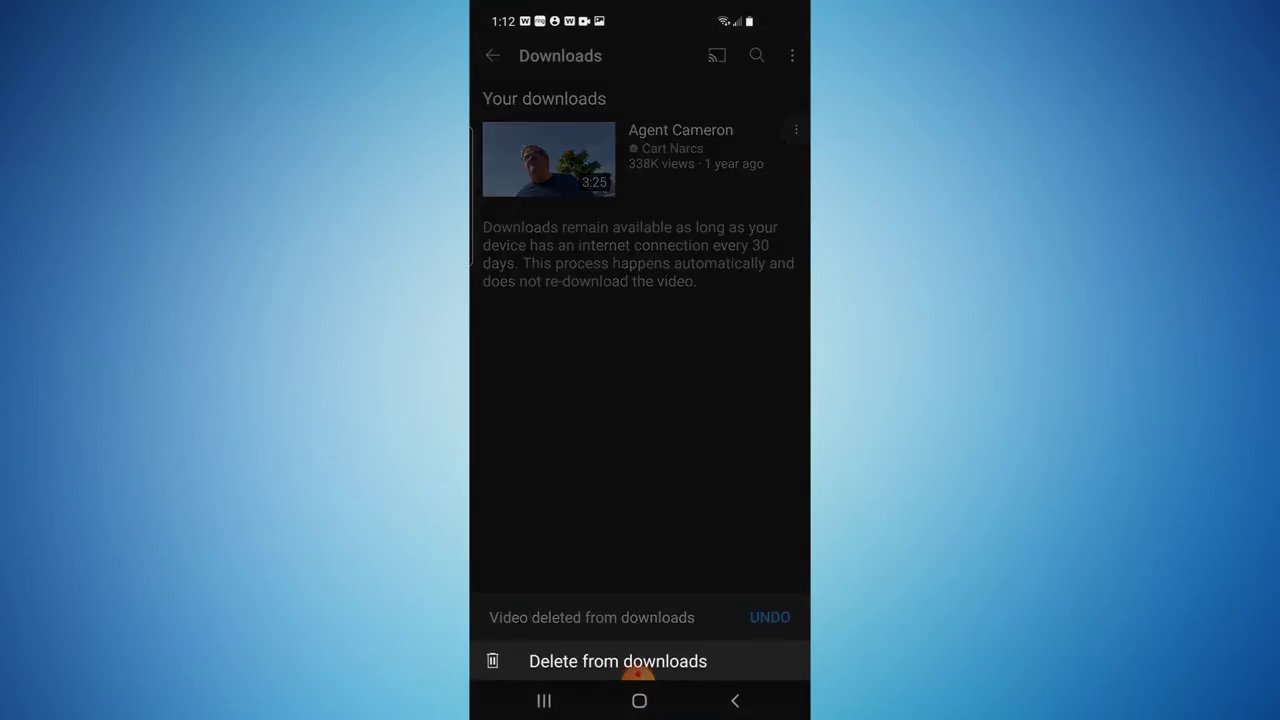
Managing this library is just as simple. If you need to free up space on your device or remove a video you no longer need:
– In your Downloads library, find the video you want to delete.
– Tap the three dots on the video’s thumbnail.
– Select “Delete from downloads.” The video will be immediately removed from your device’s storage but will remain available on YouTube for streaming if you’re online.
This system makes it easy to curate a rotating collection of offline content, whether you’re building a playlist for a workout session or saving educational content for a study period. For creators looking to repurpose content, understanding these download and organization tools is a great first step before moving into editing. If you’re interested in turning downloaded clips into new creations, our guide on creating high-view TikTok clips on your phone offers excellent next steps.
Key Considerations and Best Practices
While the download feature is powerful, using it effectively involves a few smart practices. First, be mindful of your device’s storage. Video files, especially in higher qualities, can take up significant space. It’s a good habit to periodically review your Downloads library and remove videos you’ve already watched.
Second, remember that downloads have an expiration period. To comply with licensing agreements, most downloaded videos are only available offline for 30 days. Once you start playing a downloaded video, you typically have 48 hours to finish watching it before it requires a new internet connection to verify your Premium status. The app will usually notify you when a download is about to expire.
Finally, this feature underscores the value of a YouTube Premium subscription beyond just ad removal. The seamless integration of offline viewing, background play, and access to YouTube Music makes it a comprehensive package for mobile media consumption. When evaluating which short-form platform to invest your time in, considering these built-in features is crucial. For a broader look at platform choices, you might find our analysis on choosing the right short-form platform for your content goals helpful.
Conclusion
Downloading YouTube videos on your mobile device is a simple, legal, and incredibly useful feature that unlocks true viewing freedom. By following the two main methods—downloading directly from the player or from the thumbnail menu—you can quickly build a personal offline library. Managing this library through the dedicated Downloads section ensures you always have your favorite content on hand, and the easy deletion process helps you maintain control over your device’s storage.
The key takeaway is that this powerful functionality is tied to a YouTube Premium subscription, which offers a ad-free experience and other benefits alongside offline downloads. By taking advantage of free trial periods, you can test this workflow risk-free. Mastering this skill means you’ll never be without your preferred videos, whether you’re seeking entertainment, education, or inspiration on the go. For those who download content as a resource for their own creative projects, pairing this skill with robust editing knowledge is powerful. To elevate your edited videos, explore our comprehensive guide to applying filters and effects for professional results.