Your Complete Guide to Saving Instagram Videos to Your Phone Gallery (Android & iPhone)
Ever found a hilarious reel, a perfect workout tutorial, or a stunning travel video on Instagram that you wanted to save for later, only to realize there’s no official “download” button? You’re not alone. While Instagram is built for sharing and viewing content within its own ecosystem, saving videos directly to your phone’s gallery is a common desire. Fortunately, with a simple, free tool, you can easily download those videos to your camera roll on both Android and iPhone devices. This guide will walk you through the entire process, step-by-step, so you can build your own offline collection of favorite Instagram content.
The Essential Tool: Introducing the Repost App
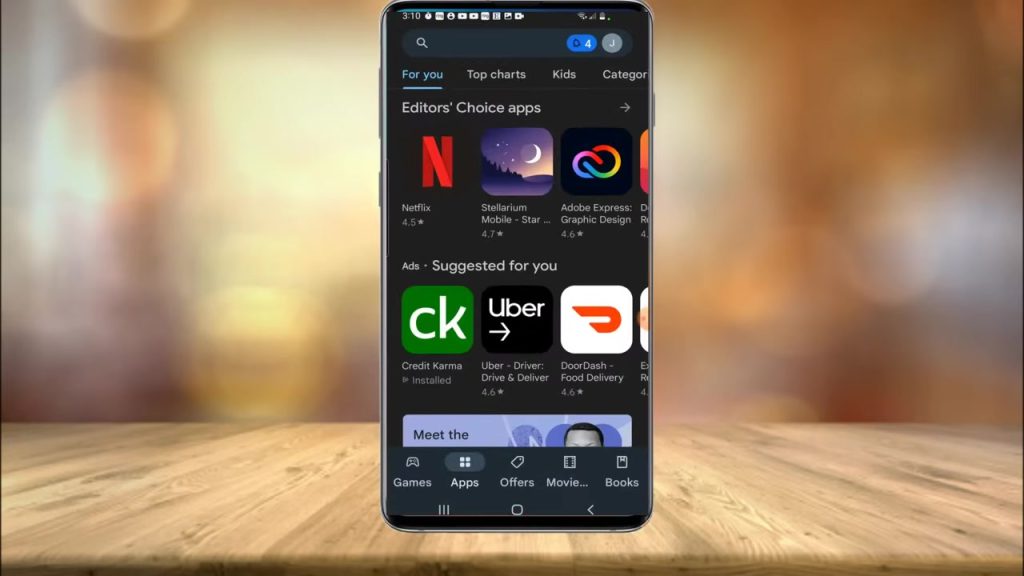
The key to unlocking this functionality is a third-party application. The video creator specifically recommends using the Repost for Instagram app, identifiable by its icon featuring rainbow colors and two arrows. This is a free application available for download on both the Google Play Store for Android users and the iOS App Store for iPhone users.
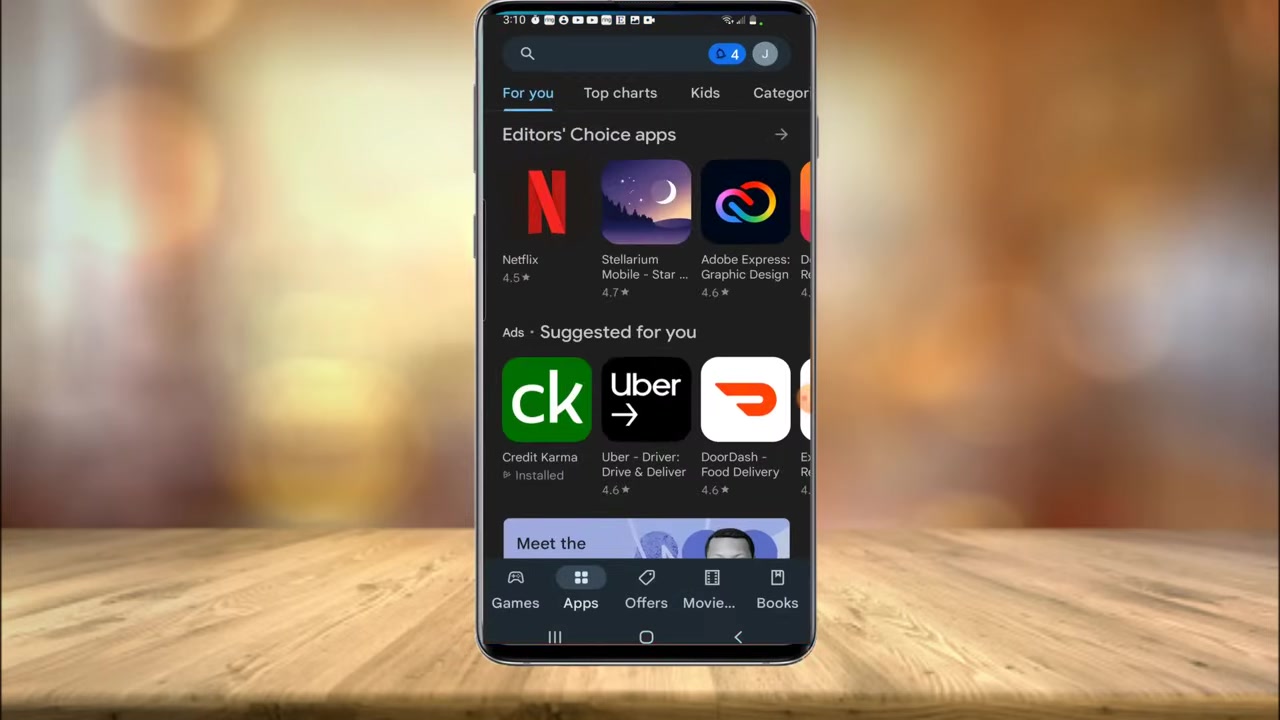
It’s important to note that while the app is free to download and use, it is supported by advertisements and may occasionally prompt you to sign up for a paid subscription to remove ads or access “boosted” download speeds. However, as demonstrated, the standard free version is perfectly capable of handling the download task. The process hinges on the app’s ability to process a public link copied from Instagram, making it a versatile solution for most public videos you encounter.
Step-by-Step: How to Download Any Instagram Video
The process is straightforward and can be broken down into a few clear actions. Follow these steps in order to successfully save a video from Instagram to your phone’s gallery.
-
Find and Copy the Video Link. First, open the Instagram app and navigate to the video you wish to save. This could be in your feed, on a profile page, or in the Explore tab. Once you’ve found the video, look for the three-dot menu (•••) typically located in the bottom right corner of the post. Tap on it, and from the menu that appears, select “Copy Link.”
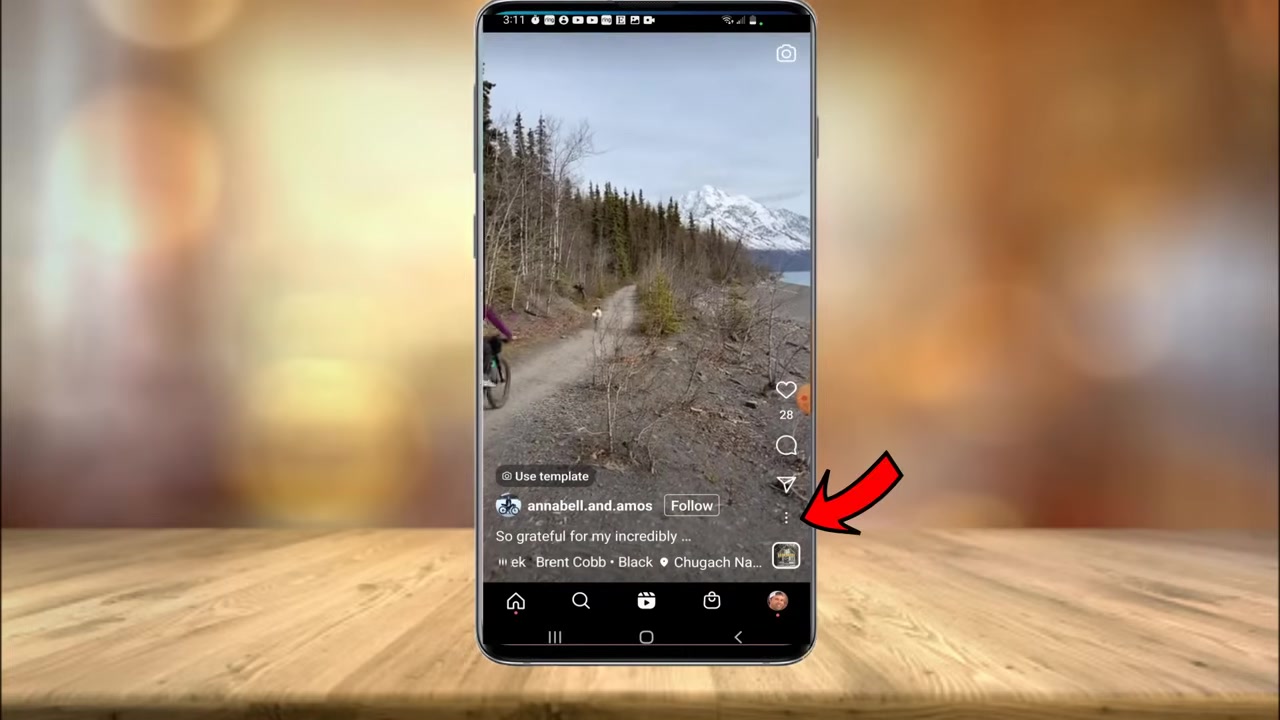
A crucial note on privacy: If the “Copy Link” option is not visible in the menu, the video is likely from a private account. Downloading content from private accounts is not possible with this method (and is generally discouraged out of respect for privacy settings). The creator notes that the vast majority of public videos will have this option available.
-
Open the Repost App. After copying the link, exit or minimize Instagram and launch the Repost for Instagram app you installed. A smart feature of this app is that it will often automatically detect the copied link and begin loading the video immediately. You may see a prompt to sign up for a subscription upon opening the app; you can simply dismiss this by tapping the “X” button to proceed with the free service.
-
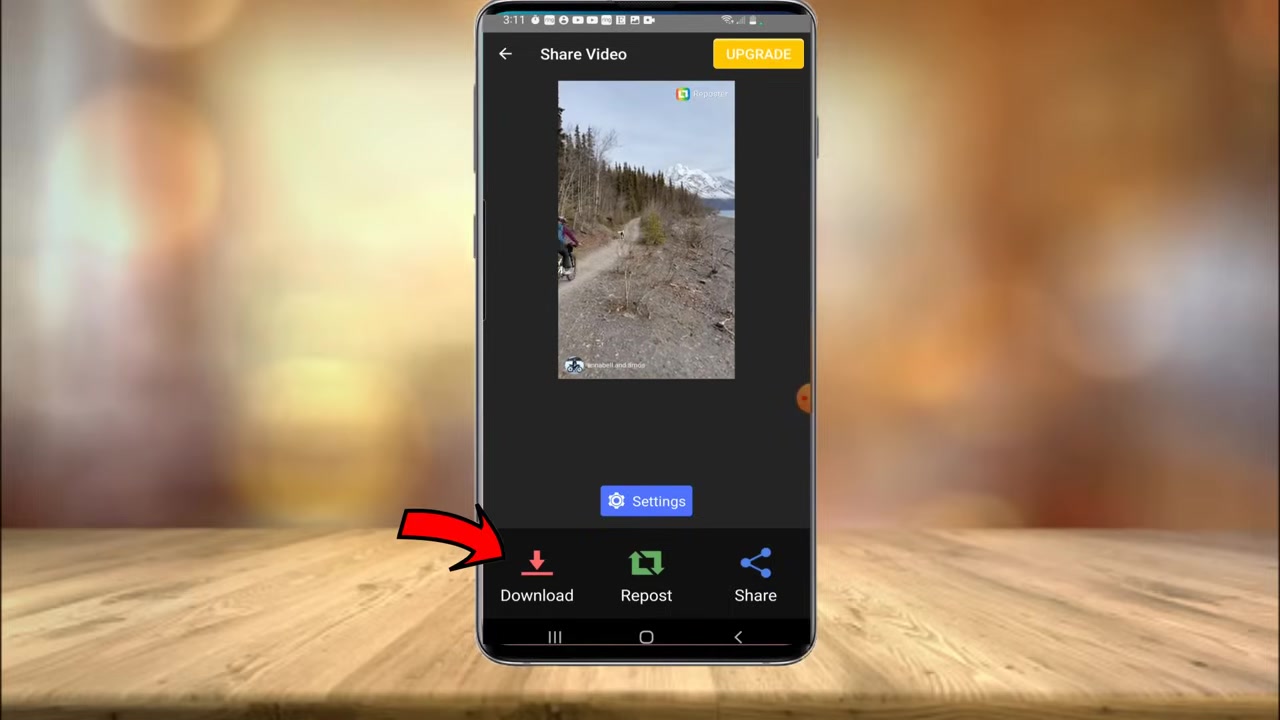
Initiate the Download. Once the app has loaded the Instagram video, you will see a preview of it. Look for a “Download” button, which in the demonstration was located in the bottom left corner of the screen. Tapping this will start the download process. Be prepared for a short advertisement to appear; you can close it when the option is available. The app will then prepare and process the video for download. While a “Boost” option may appear to speed up the process for a fee, the standard download usually completes within a minute or two for most videos.
-
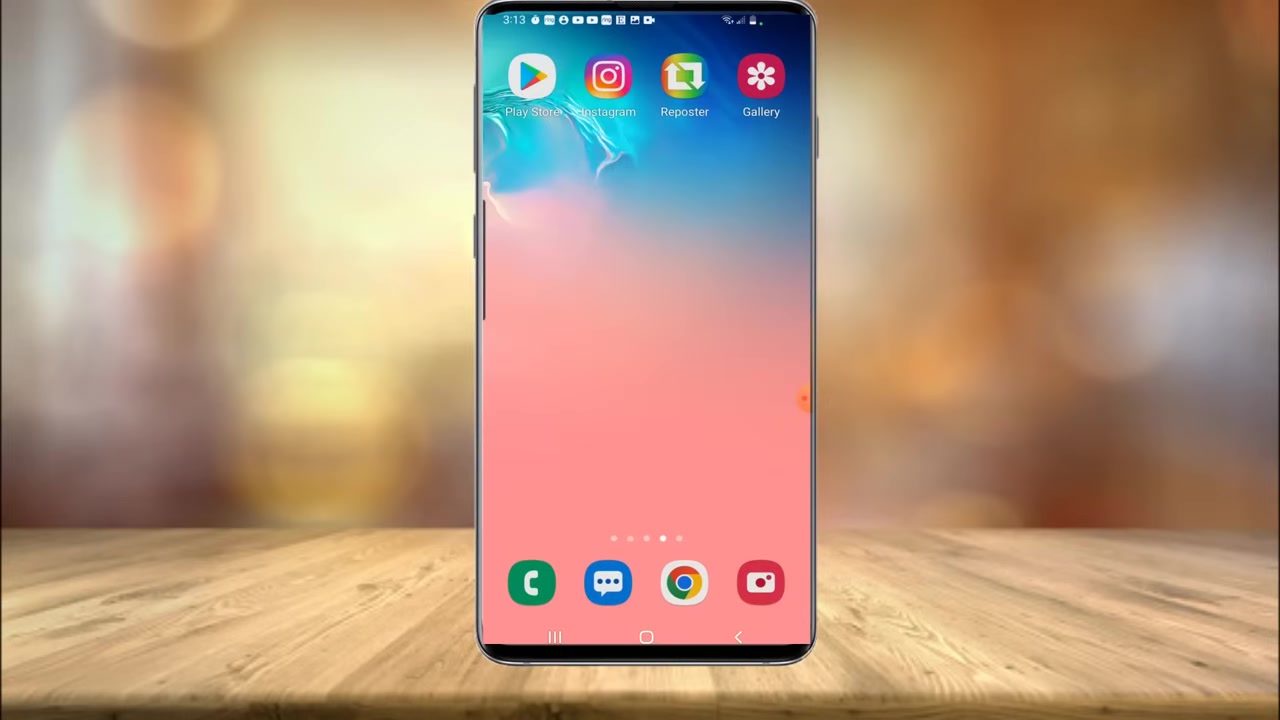
Locate Your Saved Video. When the download is complete, you will receive a confirmation. You can then exit the Repost app. The app conveniently creates its own folder within your phone’s gallery or camera roll. To find your downloaded videos, open your phone’s native photo gallery app and look for a folder named “Reposter” or similar. Inside, you will find your saved videos with full audio intact, ready to be viewed, shared, or edited directly from your device.
Important Considerations and Best Practices
While the method is effective, it’s wise to keep a few important points in mind to ensure a smooth and respectful experience.
- Respect Copyright and Privacy. Always remember that the content you are downloading belongs to someone else. Use downloaded videos for personal viewing and enjoyment. It is considered poor etiquette and often a violation of terms to repost downloaded content as your own without explicit permission from the original creator. The “Repost” app’s primary function is actually to facilitate giving credit when sharing others’ content, which is a good practice to follow.
- App Permissions. Upon first use, the Repost app will likely request permission to access your phone’s media storage. This is necessary for it to save the video file to your gallery. Ensure you grant this permission for the app to function correctly.
- Ad-Supported Model. The free version of the app includes advertisements. These are typically short banners or interstitial ads that appear between actions. Patience is key; closing these ads when prompted will allow you to continue using the app without payment.
- Video Availability. This method relies on the video being publicly accessible via a link. Videos from private accounts, disappearing stories, or some live videos cannot be downloaded through this process. The availability of the “Copy Link” option is your best indicator.
Conclusion: Build Your Personal Collection with Ease
Saving your favorite Instagram videos to your phone’s gallery is no longer a frustrating puzzle. By using the free Repost for Instagram app, the entire process—from copying the link to finding the file in your “Reposter” gallery folder—takes just a couple of minutes. The key steps are universal: copy the public link, let the app process it, hit download, and ignore the optional paid upgrades. Just remember to always respect the original creators by using downloaded content personally and ethically. Now you’re equipped to save that perfect recipe tutorial, inspiring clip, or memorable meme directly to your device, ensuring you can access it anytime, even without an internet connection.