From Lottie to AI: A No-Code Guide to Animating Characters for Your App
In today’s crowded app marketplace, a functional interface is no longer enough. To truly stand out, your app needs to feel alive, polished, and premium. But what if you’re a solo developer with no animation skills, no budget for a design team, and no desire to learn complex frameworks like Lottie? This guide reveals a revolutionary AI-powered workflow that lets you design, animate, and implement dynamic, interactive characters into your SwiftUI app—all without touching a keyframe. We’ll walk through the exact four-step process, from initial character design to final code integration, proving that you can build apps that delight users without becoming an animator.
The New Standard: Apps That Feel Alive
The landscape of mobile applications has evolved. Users now expect the smooth, engaging experiences found in apps like Uber, Airbnb, and Duolingo. These apps use beautiful animations and transitions to create a sense of polish and premium quality. Behind these experiences are often entire teams of dedicated designers. For the independent developer or small team, this has traditionally been a significant barrier.
The goal is clear: to build apps that feel interactive and responsive. Imagine a character in your app that dances to the beat, celebrates user achievements, and reacts with disappointment to mistakes. This level of dynamism creates a powerful emotional connection. The old method involved mastering animation software and frameworks—a steep learning curve. The new method, as we’ll demonstrate, leverages cutting-edge AI to handle the heavy lifting, allowing you to focus on what you do best: building great software.
The Four-Step AI Animation Workflow
This process is broken down into four manageable stages: designing the character, generating the animation, creating a range of emotional reactions, and finally, importing everything into your SwiftUI project. Each step uses specific AI tools to achieve professional results.
Step 1: Designing Your Character with AI
The first step is to define your character’s style and purpose. For this example, we’re creating a character for a piano learning app. The aesthetic is a cute Japanese cartoon style (often referred to as kawaii). The character should feel like it belongs in the same room as a piano.
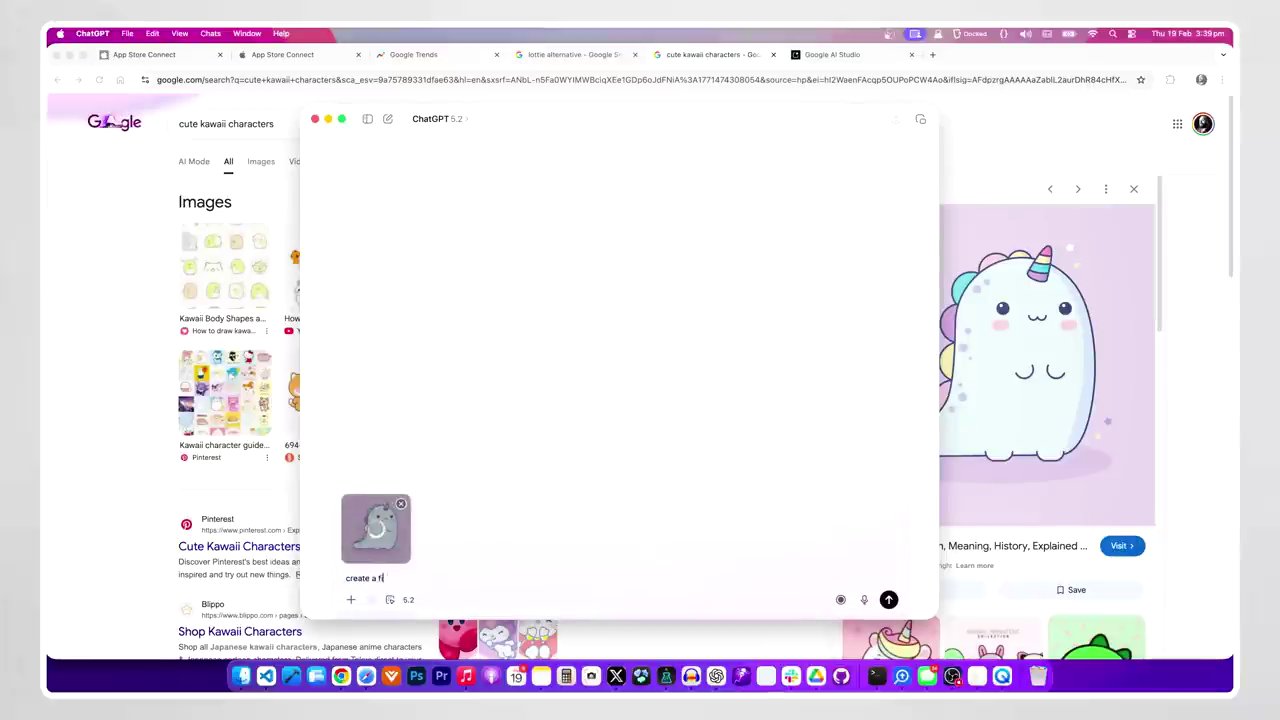
- Find a Style Reference: Begin by searching for inspiration on platforms like Google Images. Look for terms like “cute kawaii characters.” You’re not looking to copy a character directly, but to identify a color scheme, facial expressions, and overall style that you want to emulate.
- Generate the Base Design: Use ChatGPT (version 4o or later is recommended for its image generation and style-blending capabilities) to create your initial character. Provide a clear prompt that includes your reference image and a description. For instance: “Generate a cute kawaii fish in a bowl in the same style as this reference image.” The first result might not be perfect—it could have odd elements like a unicorn horn—but it provides a solid starting point.
- Refine with NanoBanana Pro: For precise revisions, move to NanoBanana Pro on Google AI Studio. This tool is excellent for iterative editing. Paste your generated character into the playground and prompt it to remove unwanted elements, adjust features, and, crucially, place the character on a solid green background. This green screen will be essential later for creating transparent animations.
- Prepare the Final Canvas: For pixel-perfect preparation, use an image editor like Photoshop. Create a new canvas with a standard aspect ratio (1:1, 16:9, or 9:16 work best with AI video tools). Place your character consistently in the frame, ensuring there’s enough space around it for the animation to move (like jumping or dancing). Consistency in positioning across all your character designs is key for a uniform look in your app.
Step 2: Bringing Your Character to Life with Sora 2
With your static character ready, it’s time to animate. This is where the magic happens, using OpenAI’s Sora 2 model via platforms like Fowd AI.
- Choose the Right Model: In Fowd AI, select the “Image to Video” option. You’ll typically have a choice between a Pro and a non-Pro version of Sora 2. From testing, the Pro version (costing around $1.20 per video) yields consistently higher quality and more reliable results for this use case.
- Craft the Perfect Prompt: Your prompt is critical. It should have two parts:
- Animation Instructions: e.g., “Animate fish inside the fish tank slowly grooving to the music, happy, solid green background.”
- Context: e.g., “This is an idle animation screen for a game. The fish needs to just be grooving and moving slightly in a loop.”
Providing this context prevents Sora from creating wild camera zooms or panning shots and ensures the output is a usable, loopable animation.
- Generate and Select: Choose your desired video length (5 seconds works well for loops) and match the aspect ratio you prepared earlier. A powerful feature here is the ability to generate multiple variations at once (up to 10). You can preview them and select the best one, saving enormous time compared to generating single videos repeatedly.
Step 3: Creating a Spectrum of Emotions
A single idle animation is good, but for true interactivity, your character needs to react. This is what makes an app feel “alive.” Repeat the Sora 2 process using the same base character image to generate a set of emotional reactions. Using the same source image guarantees visual consistency across all animations.
- Idle: “Fish in bowl, subtle, calm breathing motion.”
- Dancing/Celebration: “Fish jumping out of a fish tank in excitement, doing a backflip, then landing back in the water.”
- Disappointment/Sadness: “Fish looks sad, deflated, low energy.”
- Level Up/Excitement: “Fish wiggling happily, bubbles rising quickly.”
By generating these specific states, you can trigger them based on user actions in your app—celebrating a correct note, showing sadness for a mistake, or dancing when a level is completed.
Step 4: From GIF to Interactive SwiftUI Component
The final step is to integrate these animations into your app. The animations are now just GIF files with transparent backgrounds, making them surprisingly easy to handle.
- Process the Video: Import your chosen MP4 from Sora into a video editor like Premiere Pro (or a free online tool like EasyGIF.com). Use a color key effect to remove the green background, creating transparency. Export the final clip as an animated GIF. If you encounter pixelation, adjust the transparency setting from “dithered” to “hard edges.”
- Organize Assets: Add the GIFs to your Xcode project asset catalog. Use a simple, clear naming convention like
character_idle,character_dancing,character_gameover,character_levelup. - Build the SwiftUI View: You can now create a
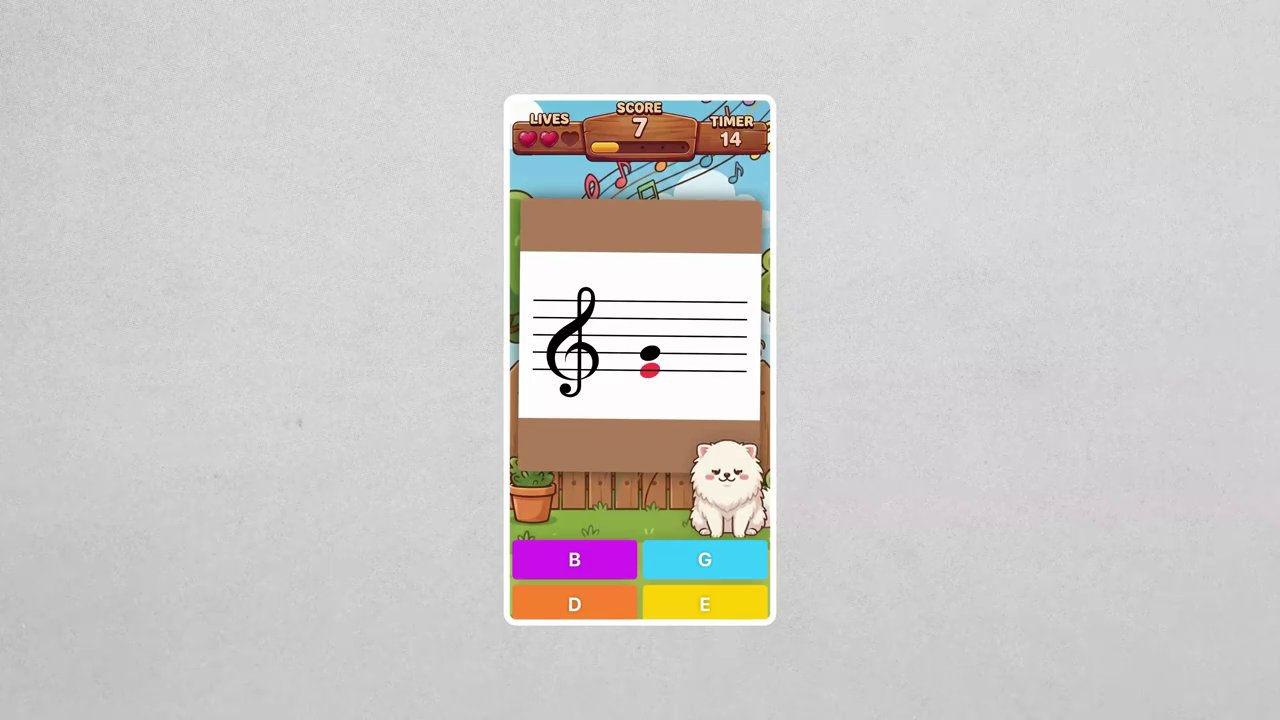
CharacterViewin SwiftUI. The key is to use a binding variable to control the animation state. You can even use ChatGPT to help generate this boilerplate code. Crucially, ensure the GIFs are pre-fetched or cached to prevent the character from disappearing for a few frames during state transitions. For developers looking to streamline content integration in other areas, understanding efficient asset management is key, much like the principles covered in our guide on downloading and repurposing TikTok content on PC. - Trigger Animations: Link the view’s state to your app’s logic. When the user hits a wrong note, set the state to
gameover. When they complete a level, triggerlevelup. The view will seamlessly switch between the GIFs, creating a fluid interactive experience.
Conclusion: Democratizing Premium App Design
This AI-powered workflow fundamentally changes who can create polished, animated experiences. You don’t need to know keyframes, motion curves, or Lottie. By combining tools like ChatGPT for design, NanoBanana for refinement, Sora 2 for animation, and standard video editing for processing, any developer can add a layer of premium interactivity to their applications.
The takeaway is powerful: the barrier to creating apps that feel “alive” is no longer a technical skill set but a creative workflow. This method allows solo developers and small teams to compete with the polished feel of large-studio products. As platforms like Apple raise the bar for app quality, leveraging AI for design and animation isn’t just a trick—it’s a strategic advantage. Start by designing a simple character, follow these four steps, and watch your app transform from functional to fantastic. In a digital world where user attention is paramount, adding this layer of charm and interaction is a direct path to standing out, similar to how mastering the hidden language of digital content can decode what truly engages an audience.