The Ultimate Guide to Downloading TikTok Videos on Your PC in 2025

Ever found the perfect TikTok video you just had to save, only to realize the app doesn’t offer a direct download button? Whether it’s a hilarious skit, a vital tutorial, or a dance trend you want to practice offline, saving TikTok content to your personal computer is a common need. This guide will walk you through a simple, reliable, and free method to download any public TikTok video directly to your PC, without needing to install any software. By the end, you’ll be able to build a personal library of your favorite clips in just a few clicks.

Understanding the Process
Before we dive into the steps, it’s important to understand the core principle behind this method. TikTok, like many social platforms, hosts its videos on servers. When you watch a video, your browser streams it. The tool we’ll use acts as a bridge, fetching the video file from TikTok’s server and providing you with a direct link to download it. This process is straightforward, web-based, and respects the public nature of the content. It’s perfect for saving videos for personal offline viewing, inspiration, or reference, provided you always respect the original creator’s rights and intellectual property.
Step-by-Step: How to Download Any TikTok Video
This method is universally applicable for any public TikTok video. Follow these clear, numbered steps to successfully download your chosen content.
-
Find and Copy the Video Link: Navigate to TikTok on your web browser. Find the video you wish to download. Click on the Share button (usually an arrow icon on the right side of the video) and from the menu that appears, select Copy Link. This action copies the unique URL of that specific TikTok to your clipboard.
-
Access the Download Tool: Open a new tab in your browser and go to Google. In the search bar, type “snap tick” and press Enter. From the search results, open the first website, which is typically the official SnapTik site. These online tools are designed specifically for downloading TikTok videos without watermarks.
-
Paste and Process: On the SnapTik website, you will see a text box or a designated area for a URL. Click inside this box and paste the TikTok link you copied earlier (you can use Ctrl+V or right-click and select Paste). Then, click the prominent Download button next to the box.
-
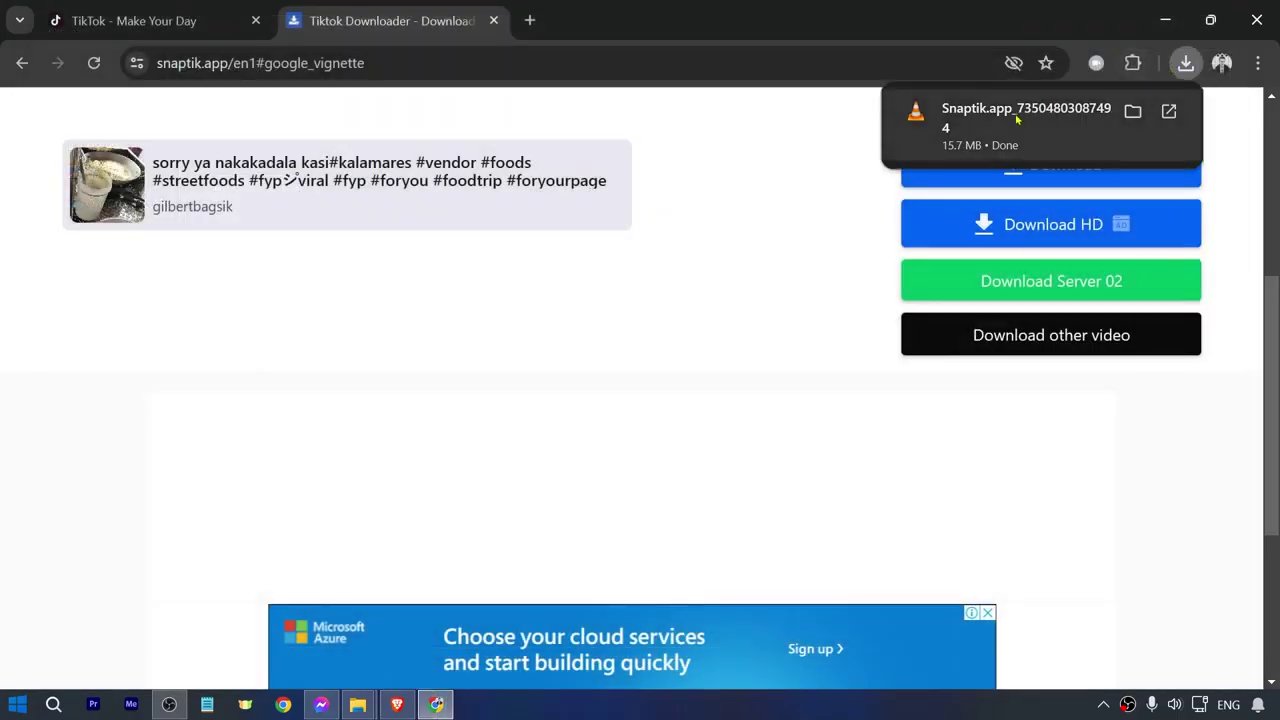
Initiate the Download: The website will process the link. After a moment, it will display the video. You may see options for video quality. Simply scroll down on the page, and you should see a clear Download button or link associated with the video file. Click this button.
-
Save the Video File: Your browser will trigger a standard file-saving dialog box. Choose a location on your PC where you want to save the video, such as your Downloads folder, Desktop, or a specific project folder. Click Save. Once the download is complete, navigate to that location and double-click the file to open and verify your downloaded TikTok video.
Why This Method Works Best for PC Users
Using a web-based downloader like SnapTik on a PC offers several distinct advantages over other methods. Firstly, it requires no software installation, keeping your computer free of potentially unwanted programs. The process happens directly in your browser, which is generally more secure than downloading standalone applications of unknown origin. Secondly, the larger screen and precise mouse control make navigating between tabs, copying links, and managing files significantly easier than on a mobile device. Furthermore, downloading directly to your PC provides immediate access for editing, organizing into folders, or integrating into other projects without the need to transfer files from a phone. For those who also save content from other platforms, the process is very similar to methods for downloading Instagram videos to your PC without any software, making it a versatile skill to have.
Important Considerations and Best Practices
While the tool is powerful and easy to use, responsible downloading is crucial. Always remember that the content you are saving belongs to its creator. Only download videos for personal, non-commercial use. Redistributing downloaded content without permission or claiming it as your own is a violation of copyright and the creator’s hard work. It’s also good practice to ensure the video you want to download is from a public account; private account videos are not accessible through this method. The quality of the downloaded video will typically match the highest quality available for that TikTok. If you’re interested in saving content from other platforms, you can explore our guides for your complete guide to downloading Instagram videos and reels for personal use or methods for saving Instagram Reels on your iPhone for free, which follow similar principles of using web-based tools.
Conclusion
Downloading TikTok videos to your PC is a simple, three-step process: copy the video link, paste it into a trusted web tool like SnapTik, and save the file to your computer. This method leverages your browser’s capabilities to provide a clean, software-free solution for archiving your favorite clips. By mastering this technique, you empower yourself to save tutorials, memorable moments, and creative inspiration for offline access. Just as you can efficiently save Instagram videos to your phone gallery, this PC method ensures your digital collections are versatile and organized. Always use this capability respectfully, honoring the effort of content creators, and enjoy building your personal library of standout TikTok moments.