The Ultimate Guide to Downloading TikTok Videos on Your PC Without Any Software
Ever stumbled upon a hilarious, inspiring, or downright mesmerizing TikTok video on your computer and wished you could save it for later? While the app makes it easy on mobile, downloading videos directly from TikTok.com on a PC isn’t as straightforward. But what if you could do it for free, without installing any third-party software or extensions? The secret lies within your browser’s built-in developer tools. This step-by-step guide will walk you through a simple, reliable method to download any TikTok video directly to your computer’s hard drive using Google Chrome.
Understanding the Browser-Based Method
Before we dive into the steps, it’s important to understand what we’re doing. This method leverages the Network panel in your browser’s developer console. When you load a webpage, your browser downloads all sorts of files: HTML, CSS, JavaScript, and crucially, media files like images and videos. The Network tab logs every single one of these requests. By filtering for media files and refreshing the page, we can isolate the direct video file URL that TikTok serves to your browser. It’s a clean, direct approach that gives you the original video file, often in high quality.
This technique is similar to methods used for other platforms. For instance, if you’re looking to save content from other social media sites, you might find our guide on downloading Instagram videos to your PC without any software useful, as it employs a comparable browser-based philosophy.
Step-by-Step: How to Download a TikTok Video on PC
Follow these instructions carefully. The process is logical and, once you’ve done it once, becomes second nature.
Step 1: Access TikTok and Find Your Video
First, ensure you are using the Google Chrome browser for this tutorial, as the steps are tailored to its interface. Open Chrome and navigate to TikTok.com in the address bar. Log into your account if necessary. Browse or use the search function to locate the specific video you wish to download. Once you’ve found it, click to open it so it’s playing on its own page.
Step 2: Open the Developer Tools
With the video playing, pause it. This is a crucial step to make the next actions easier. Now, right-click anywhere on the webpage (but not directly on the video player). From the context menu that appears, select Inspect. This action opens the Chrome Developer Tools panel, usually at the bottom or side of your browser window.
Step 3: Navigate to the Network Tab
Inside the Developer Tools panel, you’ll see a row of tabs like Elements, Console, and Sources. Click on the Network tab. This panel will initially be empty or show minimal activity because we just opened it. To see the data we need, we must tell it what to look for. Look for a filter bar within the Network tab. Click on the Media filter option. This instructs the panel to only display network requests for media files (like videos and audio), which will dramatically simplify our search.
Step 4: Capture the Video File
Now, with the Media filter active, you need to reload the network requests. Press F5 on your keyboard or click the refresh button in your browser to reload the TikTok page. As the page reloads, watch the Network panel. You should see one or more entries appear in the list. These are the media files being loaded. Let the video play for a second or two, then pause it again. You should now see a file listed, often with a name that includes “.mp4” or similar video format indicators. It might look like a random string of letters and numbers.
Step 5: Download and Save the Video
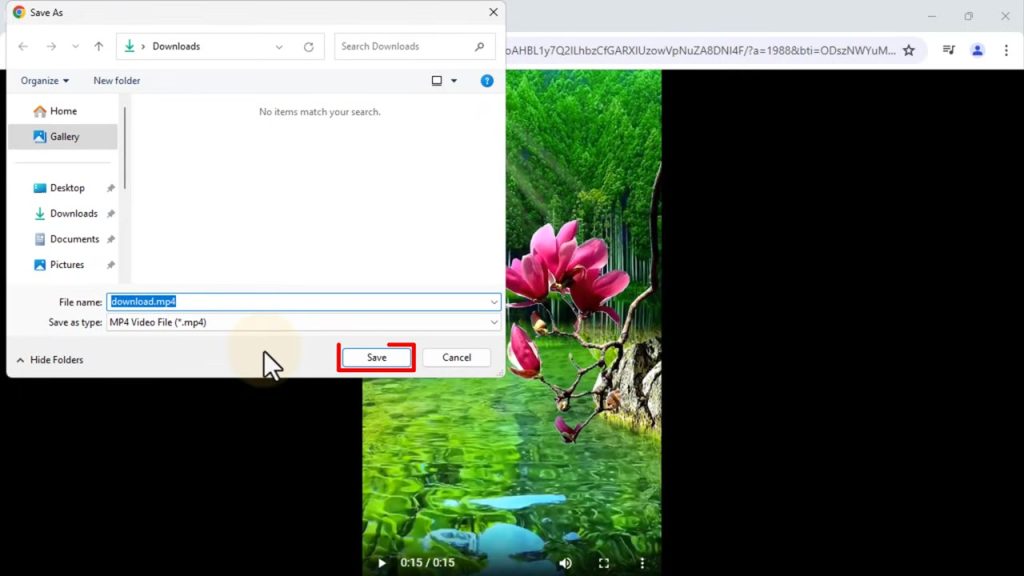
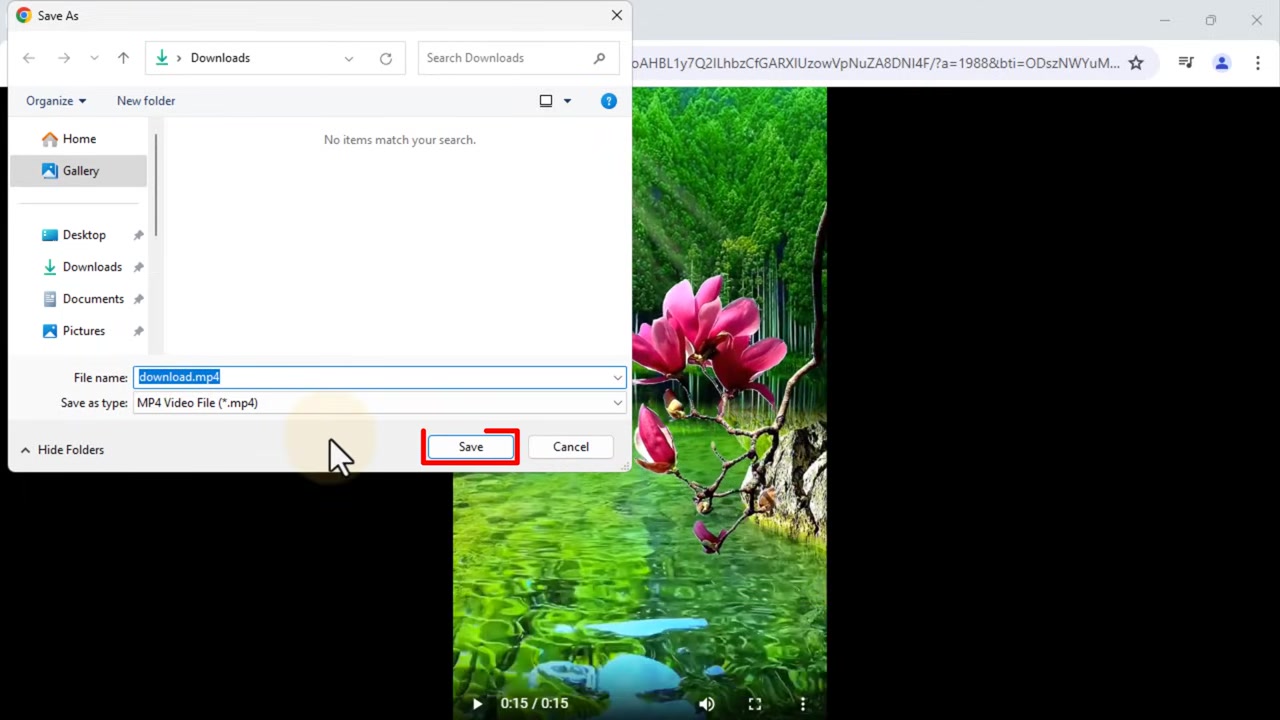
Right-click on this file entry in the Network panel. From the menu, select Open in new tab. A new browser tab will open, containing only the video player with your TikTok video. Finally, right-click directly on the video in this new tab. Choose Save video as… from the context menu. A standard file-saving dialog box from your operating system will pop up. Navigate to your desired folder (like Downloads or Desktop), rename the file if you wish for easier identification, and click Save.
Key Tips and Best Practices
- Browser Choice: While demonstrated in Chrome, this general method works in other Chromium-based browsers like Microsoft Edge or Brave. The exact location of the “Media” filter might vary slightly.
- Pausing is Key: Pausing the video before opening Inspect and before refreshing helps ensure the network log captures the specific video file request cleanly.
- File Format: The downloaded file will typically be an
.mp4, which is a widely compatible video format playable on almost any device or media player. - Respect Copyright: Always remember to use downloaded videos for personal, offline viewing only. Respect the original creator’s rights and do not repost or redistribute content without permission, as outlined in TikTok’s Terms of Service.
This browser-based method is a powerful skill that extends beyond TikTok. The principle of using developer tools to access media files is a universal trick for web content. For example, if you’re also an avid Instagram user, understanding these concepts can help with your complete guide to downloading Instagram videos and Reels for personal use.
Conclusion
Downloading TikTok videos directly to your PC is a simple, software-free process once you know where to look. By using the built-in Developer Tools in Google Chrome, specifically the Network tab filtered for Media, you can access and save the direct video file from any TikTok. The steps—access the site, open Inspect, filter for Media, refresh, and save the file—provide a reliable way to build a personal collection of your favorite clips. Whether it’s for a creative inspiration folder, a collection of tutorials, or just to save a laugh for a rainy day, this method empowers you to take control of the content you enjoy online. As with any content saving method, we always advocate for responsible use, ensuring you support creators by engaging with their content on-platform whenever possible. For more guides on managing your social media content, explore our resources like the ultimate guide to saving Instagram Reels on your iPhone for free.